 By
By The insufficient storage notification is one of the most annoying things Android throws at you. You can’t install updates, apps stop working properly, and the phone slows down. The good news is there’s almost always space to reclaim — it’s just not always obvious where it’s hiding.
See Exactly What’s Using Your Storage
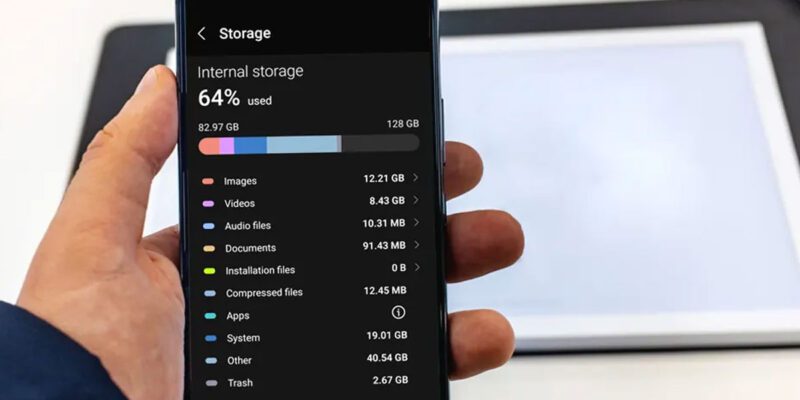
Go to Settings > Storage. This gives you a breakdown by category: apps, photos, videos, audio, downloads, and other. Tap each category to see individual items. Most people are shocked to discover how much space is sitting in their Downloads folder or in WhatsApp media they didn’t realize was saving locally.
Clear App Caches Across the Board
Individual app caches can accumulate to hundreds of megabytes. Go to Settings > Apps and sort by size. Tap each large app and clear its cache. Google Maps, YouTube, Chrome, Instagram, and Spotify are consistently the biggest cache hoarders. Clearing cache doesn’t delete your data — just temporary files.
Back Up and Remove Photos and Videos
Photos and videos are the biggest storage consumers on most phones. Enable Google Photos backup (or iCloud if you’re somehow using it on Android), verify all your photos are backed up with a green checkmark, then use the Free Up Space option in Google Photos to remove local copies. This can instantly recover gigabytes.
Clear WhatsApp Media
WhatsApp automatically saves received photos, videos, and documents locally. Over years of use this builds into several gigabytes. Open WhatsApp > Settings > Storage and Data > Manage Storage. Sort by largest files or by chat. Delete media from large chats and remove videos you don’t need to keep permanently.
Uninstall Apps You Don’t Actually Use
Be honest about your app list. If you haven’t opened something in 60 days, you probably don’t need it. Sort your app list by size to find the heaviest ones. Games especially tend to download large asset packs — an old game you stopped playing months ago might be occupying 2–4 GB you could have back today.
Move Apps to SD Card (If Your Phone Supports It)
If your Android phone has a microSD slot, some apps can be moved to the SD card. Go to Settings > Apps > [App] > Storage and look for a Change option to move it to SD card. Not all apps support this (apps with widgets or system integrations usually can’t be moved), but media apps, games, and file managers often can.
Use Files by Google to Find Hidden Junk
Google’s Files app has a built-in cleaning feature that identifies junk files, duplicate photos, large files you may have forgotten, and temporary downloads. Open Files > Clean and work through each category. It identifies storage waste that the default file manager often misses.
Views: 113

You may also like
Why Your Android Phone Charges So Slowly and What Actually Fixes It

How to Use Your Phone to Learn About Nutrition Without Getting Confused
How to Use Your Phone to Document and Share Your Creative Work
More in:Apps

How to Use Your Phone to Build Better Habits That Actually Stick

How to Use Your Phone to Help You Through a Difficult Life Transition

How to Use Your Phone for Better, More Meaningful Travel Experiences

TecRounder is a blog that shares New Technology news from around the world (hence the name TecRounder), including the most recent mobile and gadget information: smartphone features, specifications, and more. You can find the latest technology updates here, including the most recent information on smartphones, laptop computers, and other electronic devices.