 By
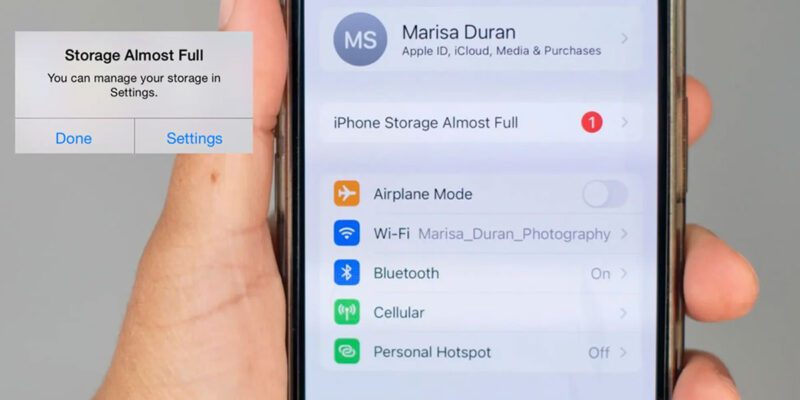
By iPhone storage has a way of filling up without you noticing — and when it does, everything starts slowing down, the camera complains, and apps stop working properly. Here’s how to find where the space is going and reclaim it without losing anything important.
See Exactly What’s Using Your Storage
Go to Settings > General > iPhone Storage. Wait a few seconds for the breakdown to fully load. You’ll see a bar showing usage by category and a list of apps with their sizes. Tap any app to see its app size versus its documents and data — the documents and data is cache and stored content that can often be cleared.
Use iCloud Photos Optimize Storage
If photos are your biggest category (they usually are), go to Settings > Photos and enable iCloud Photos, then select Optimize iPhone Storage. This keeps low-resolution previews on your phone and stores originals in iCloud. Your photos are all still there and viewable — they just download in full resolution when you need them. This can recover gigabytes immediately.
Offload Unused Apps
In Settings > General > iPhone Storage, you can enable Offload Unused Apps. This automatically removes apps you haven’t used in a while, keeping their data and documents so you can reinstall without losing progress. The app icon stays on your home screen with a small cloud icon. iPhone handles the offloading automatically based on your usage patterns.
Clear App Caches Individually
iPhone doesn’t have a global cache clear option, but individual apps can be cleared. For most apps, the most effective method is offloading the app (Settings > iPhone Storage > [App] > Offload App) and reinstalling — this removes accumulated cache without deleting your personal data in the app. For apps like Spotify and Podcasts, look for Delete Cache options within the app’s own settings.
Delete Downloaded Content
Streaming apps save offline content that takes significant space. In Spotify, go to Settings > Storage and remove downloaded music. In Netflix, go to Downloads and remove anything you’ve watched. In Apple Podcasts, delete downloaded episodes. In Maps, go to Settings > Maps > Offline Maps and remove any saved areas.
Messages and iMessage Storage
Go to Settings > General > iPhone Storage > Messages. Tap Review Large Attachments and delete old videos, large photos, and attachments from your messages. Also in Settings > Messages, set Keep Messages to 30 days or 1 year instead of Forever — this automatically deletes old messages on a rolling basis and prevents indefinite accumulation.
Clean Up Your Downloads and Browse History
Open Files > On My iPhone and go through the Downloads and Documents folders. Files you downloaded once and forgot about accumulate here. In Safari, go to Settings > Safari > Clear History and Website Data to remove cached site data, which can take up several hundred megabytes over months of browsing.
Views: 109

You may also like

How to Use Your Phone to Learn About Nutrition Without Getting Confused

How to Use Your Phone to Document and Share Your Creative Work

How to Use Your Phone to Prepare for a Job Interview
More in:Apps

How to Use Your Phone to Build Better Habits That Actually Stick

How to Use Your Phone to Help You Through a Difficult Life Transition

How to Use Your Phone for Better, More Meaningful Travel Experiences

TecRounder is a blog that shares New Technology news from around the world (hence the name TecRounder), including the most recent mobile and gadget information: smartphone features, specifications, and more. You can find the latest technology updates here, including the most recent information on smartphones, laptop computers, and other electronic devices.