iPhone Battery Draining Too Fast? Every Fix That Actually Works
 By
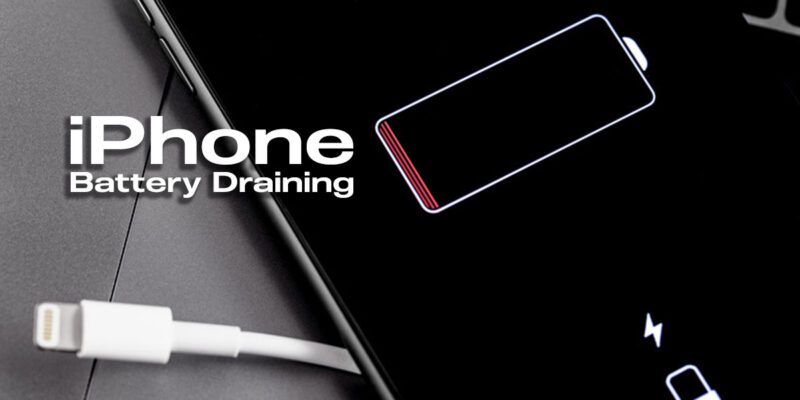
By iPhone battery drain is a perennial complaint, especially after major iOS updates. Sometimes it’s the update itself, sometimes it’s an app, and sometimes it’s just settings that have never been optimized. Here’s every fix that actually helps, from the quick wins to the deeper changes.
Check Battery Health First
Go to Settings > Battery > Battery Health & Charging. If your maximum capacity is below 80%, the battery is significantly degraded and no software fix will fully compensate for the reduced capacity. Battery replacement (through Apple or an authorized service provider) is the only real fix at that point. If health is above 80%, the problem is software — keep reading.
Identify Which App Is Draining Battery
Go to Settings > Battery and scroll down to see battery usage by app over the last 24 hours and 7 days. Look for any app consuming an unusually high percentage relative to how much you actually use it. High background activity for an app you rarely open is a red flag. That’s your starting point.
Reduce Background App Refresh
Settings > General > Background App Refresh. Set this to Wi-Fi Only or turn it off entirely. This prevents apps from updating in the background when you’re not using them. Most apps — social media, news, email — don’t need to refresh constantly. The content will load when you open them.
Turn Off Location Services for Non-Essential Apps
Settings > Privacy & Security > Location Services. Work through every app and change any set to Always to While Using App. GPS activity is one of the biggest battery consumers. A shopping app, social app, or game that’s set to Always is using location data even when you’re not using the app.
Disable Push Email for Secondary Accounts
Settings > Mail > Accounts > Fetch New Data. Change push to fetch (every 15 or 30 minutes) for accounts you don’t monitor urgently. Leave push on for your main email account only. Each push-enabled account maintains a constant connection to its server — multiply that by several accounts and it adds measurable battery drain.
Reduce Screen Brightness and Enable Auto-Brightness
Display is typically the biggest single battery consumer. Enable Auto-Brightness under Settings > Accessibility > Display & Text Size. Also reduce the Raise to Wake sensitivity — if your screen keeps activating in your pocket or bag, it’s wasting significant battery. Settings > Display & Brightness > Raise to Wake toggle.
Enable Optimized Battery Charging
Settings > Battery > Battery Health & Charging > Optimized Battery Charging. This feature learns your charging schedule and slows charging above 80% until you need the phone, reducing long-term battery degradation. It doesn’t extend today’s charge but preserves battery health so capacity stays higher for longer.
Views: 162

You may also like

How to Use Your Phone to Learn About Nutrition Without Getting Confused
How to Use Your Phone to Document and Share Your Creative Work

How to Use Your Phone to Prepare for a Job Interview
More in:Gadgets

How to Use Your Phone to Manage Your Pet’s Health Records and Vet Visits

How to Use Your Phone to Deal With Information Overload

How to Use Your Phone to Learn Basic First Aid You Might Actually Need

TecRounder is a blog that shares New Technology news from around the world (hence the name TecRounder), including the most recent mobile and gadget information: smartphone features, specifications, and more. You can find the latest technology updates here, including the most recent information on smartphones, laptop computers, and other electronic devices.