How to Fix iPhone Not Connecting to Wi-Fi After an Update
 By
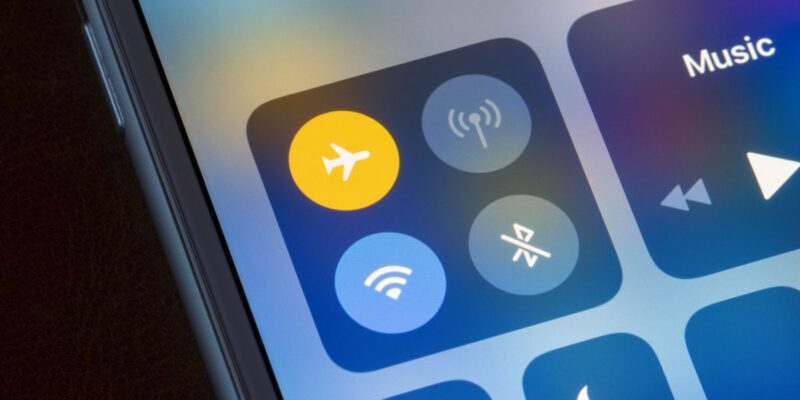
By iOS updates occasionally break Wi-Fi connectivity for some users — it’s one of the most-searched complaints after major releases. If your iPhone stopped connecting to Wi-Fi properly after an update, here are the fixes that actually work, in order of how invasive they are.
Start With a Restart
Hold the Power button (and either volume button on Face ID iPhones) until the slider appears. Slide to power off. Wait 30 seconds. Power back on. Then try connecting to Wi-Fi again. This clears temporary software conflicts that sometimes occur immediately after an update installs.
Forget and Rejoin the Network
Go to Settings > Wi-Fi, tap the i icon next to your network, and select Forget This Network. Then reconnect by selecting the network and entering the password. This clears any corrupted network credentials that may have persisted through the update.
Reset Network Settings
Go to Settings > General > Transfer or Reset iPhone > Reset > Reset Network Settings. This clears all Wi-Fi passwords, VPN settings, and network configurations. You’ll need to rejoin all Wi-Fi networks. This resolves most post-update Wi-Fi issues because iOS sometimes updates the network stack in ways that conflict with stored settings.
Toggle Wi-Fi Assist and Private Address
Go to Settings > Cellular and scroll down to disable Wi-Fi Assist (this prevents iPhone from switching to cellular when Wi-Fi is weak, which can cause connection confusion). Also try disabling Private Wi-Fi Address for your specific network: Settings > Wi-Fi > tap the i icon > toggle off Private Wi-Fi Address. Some routers have compatibility issues with MAC address randomization.
Renew DHCP Lease
Connect to your Wi-Fi network, then go to Settings > Wi-Fi > tap the i icon next to your network > Renew Lease. This requests a fresh IP address from your router. IP address conflicts or stale leases can prevent proper connection even when the Wi-Fi shows as connected.
Check the Router Side
Restart your router (unplug for 30 seconds, replug). Check if your router’s firmware is up to date. If your iPhone updated to support Wi-Fi 6 or a new security standard, an older router firmware may have compatibility issues. Also check if your router is blocking the device — sometimes MAC address filtering causes post-update connection problems when the device ID appears different.
Wait for a Patch Update
If the problem is widespread and none of these fixes work, Apple typically releases a .1 or .2 patch within a week or two addressing known Wi-Fi regressions. Check the Apple support page for your iOS version and keep your phone updated — bug fix releases usually arrive quickly after major updates that cause widespread connectivity problems.
Views: 101

You may also like

How to Use Your Phone to Learn About Nutrition Without Getting Confused
How to Use Your Phone to Document and Share Your Creative Work

How to Use Your Phone to Prepare for a Job Interview
More in:Gadgets

How to Use Your Phone to Manage Your Pet’s Health Records and Vet Visits

How to Use Your Phone to Deal With Information Overload
How to Use Your Phone to Learn Basic First Aid You Might Actually Need

TecRounder is a blog that shares New Technology news from around the world (hence the name TecRounder), including the most recent mobile and gadget information: smartphone features, specifications, and more. You can find the latest technology updates here, including the most recent information on smartphones, laptop computers, and other electronic devices.