How to Protect Your Privacy From Your Smartphone’s Built-In Tracking
 By
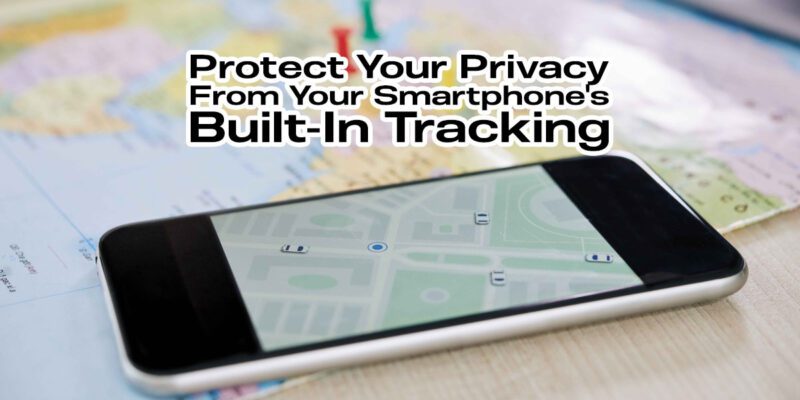
By Your smartphone collects an extraordinary amount of information about you — where you go, what you search, how you spend your time, who you talk to, and increasingly, what you say nearby. Most of this collection is legal and you technically consented to it in terms of service you’ve never read. Here’s how to meaningfully reduce it.
Audit Location Access for Every App
Go to Settings > Privacy > Location Services (iPhone) or Settings > Location > App Permissions (Android). Review every app with location access. Change anything set to Always to While Using or Deny unless there’s a specific reason. Weather apps need location. Instagram doesn’t. Food delivery apps need it while ordering. Gaming apps don’t. Being systematic here dramatically reduces passive location tracking.
Disable Ad ID Tracking
On Android, go to Settings > Privacy > Ads and tap Delete Advertising ID (on Android 12+) or opt out of personalized ads. On iPhone, go to Settings > Privacy > Tracking and ensure Allow Apps to Request to Track is off. This doesn’t stop all tracking but breaks the cross-app behavioral profile that advertisers build using your device identifier.
Review App Permissions Across the Board
Go to Settings > Privacy > Permission Manager (Android) or Settings > Privacy (iPhone). Work through each permission type — microphone, camera, contacts, calendar, health — and remove access from any app that doesn’t have a clear reason to need it. Most people find several apps with permissions they don’t remember granting.
Use Private DNS to Block Trackers at the Network Level
On Android, go to Settings > Network > Advanced > Private DNS and enter dns.adguard.com or 1dot1dot1dot1.cloudflare-dns.com. This routes DNS lookups through a filtering server that blocks known tracking and ad domains, reducing data collection from apps across your entire phone, including apps that don’t have obvious privacy settings.
Limit Google’s Activity Tracking
Go to myaccount.google.com > Data & Privacy. Review My Activity settings — specifically Web and App Activity, Location History, and YouTube History. You can pause any of these, set auto-deletion periods, or delete existing history. Location History in particular builds a detailed timeline of everywhere you’ve been, which many people would prefer not to retain.
Use Airplane Mode Strategically
Airplane mode cuts all wireless communication — cellular, Wi-Fi, Bluetooth. Using it overnight prevents any passive data transmission while you sleep. Using it in sensitive locations (medical appointments, private meetings) prevents any real-time location tracking or ambient audio capture by apps with microphone access.
Choose Privacy-Respecting Alternatives
The deepest privacy wins come from switching to apps that collect less data by design. Signal instead of WhatsApp, Firefox instead of Chrome, DuckDuckGo instead of Google Search, ProtonMail instead of Gmail. Each switch is independent and you don’t have to do them all at once. Every switch you make reduces the overall picture any single company has of your behavior.
Views: 88

You may also like

How to Use Your Phone to Learn About Nutrition Without Getting Confused
How to Use Your Phone to Document and Share Your Creative Work

How to Use Your Phone to Prepare for a Job Interview
More in:Gadgets

How to Use Your Phone to Manage Your Pet’s Health Records and Vet Visits

How to Use Your Phone to Deal With Information Overload
How to Use Your Phone to Learn Basic First Aid You Might Actually Need

TecRounder is a blog that shares New Technology news from around the world (hence the name TecRounder), including the most recent mobile and gadget information: smartphone features, specifications, and more. You can find the latest technology updates here, including the most recent information on smartphones, laptop computers, and other electronic devices.