 By
By iPhone’s messaging system should be seamless — blue bubbles for iMessage, green for SMS, just working automatically. When it breaks, it breaks in confusing ways: messages go green when they should be blue, delivery fails silently, or iMessage refuses to activate at all. Here’s how to fix every variant of this problem.
Check iMessage is Enabled
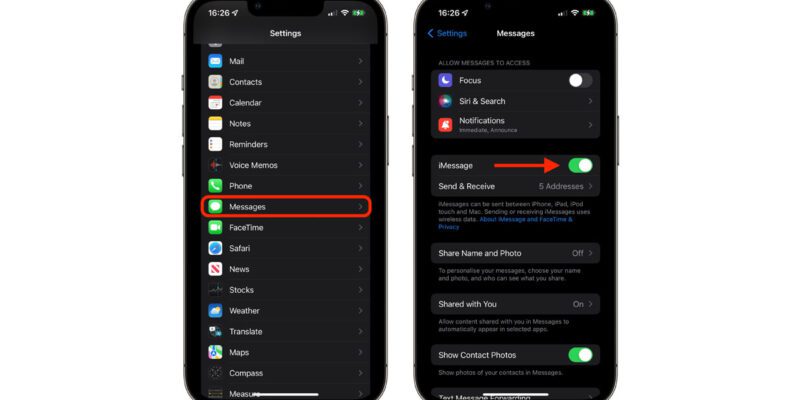
Settings > Messages and verify iMessage is toggled on. If it’s on but showing as ‘Waiting for Activation,’ see the activation fix below. Also check Settings > FaceTime and make sure FaceTime is enabled — iMessage and FaceTime share the same Apple ID activation process.
Fix iMessage Activation Problems
iMessage activation requires a working cellular connection and a valid Apple ID. If it’s stuck on ‘Waiting for Activation’: toggle iMessage off, wait 30 seconds, toggle back on. If still stuck, go to Settings > General > Date & Time and ensure Set Automatically is on — incorrect dates can block Apple’s activation servers. Then try toggling airplane mode on and off to reset the cellular connection.
Why Messages Are Going Green to iPhone Users
If messages to another iPhone user are green (SMS) instead of blue (iMessage), either their iMessage is disabled, they have no internet connection, or they’ve recently switched devices and iMessage hasn’t fully migrated. Try toggling your own iMessage off and on. You can also long-press a sent message and select Send as iMessage to manually retry.
Sign Out and Back Into Apple ID
Go to Settings > Messages > Send & Receive and check which email addresses and phone numbers are enabled. Then go to Settings > [Your Name] and sign out of your Apple ID. Restart the phone. Sign back in. This refreshes the iMessage token that authenticates your device, resolving many persistent activation and delivery problems.
Reset Network Settings
Settings > General > Transfer or Reset iPhone > Reset > Reset Network Settings. This clears network configurations that sometimes conflict with iMessage’s connection to Apple’s servers. You’ll need to rejoin Wi-Fi networks. Usually resolves iMessage delivery problems that persist after other fixes.
Deregister iMessage if You Switched From iPhone
If you’ve switched from iPhone to Android and friends’ messages to your old number aren’t arriving on your Android, iMessage may still be registered to your number. Visit Apple’s iMessage deregistration page (appleid.apple.com) and deregister your phone number from iMessage. Without this step, messages from iPhone users to your number get sent as iMessages that never reach your Android.
Contact Apple Support as a Last Resort
Some iMessage problems are account-level issues that only Apple can resolve — specifically, if your phone number has become incorrectly associated with another Apple ID, or if there’s a problem with your Apple ID itself. If none of the above fixes work, contact Apple Support directly via chat or schedule a Genius Bar appointment.
Views: 77

You may also like
How to Use Your Phone to Learn About Nutrition Without Getting Confused
How to Use Your Phone to Document and Share Your Creative Work
How to Use Your Phone to Prepare for a Job Interview
More in:Apps

How to Use Your Phone to Build Better Habits That Actually Stick

How to Use Your Phone to Help You Through a Difficult Life Transition

How to Use Your Phone for Better, More Meaningful Travel Experiences

TecRounder is a blog that shares New Technology news from around the world (hence the name TecRounder), including the most recent mobile and gadget information: smartphone features, specifications, and more. You can find the latest technology updates here, including the most recent information on smartphones, laptop computers, and other electronic devices.