 By
By Your Android launcher is the interface you interact with more than anything else on your phone — home screen, app drawer, dock, widgets, gestures. The default launcher that came with your phone isn’t necessarily the best one for how you use it. Here’s what’s available and what each is best for.
Nova Launcher: The Classic Power User Choice
Nova Launcher has been the gold standard for Android customization for years. It’s fast, highly customizable (icon size, grid density, dock, drawer style, gesture controls), and has remained one of the most stable launchers available. The free version is excellent. Nova Prime (paid) adds more gesture options and customization depth. Best for users who want detailed control over every aspect of their home screen.
Microsoft Launcher: Best for Productivity
Microsoft Launcher integrates with your Microsoft 365 account to show calendar events, recent documents, and tasks directly on the home screen. If you use Outlook, Teams, and Office apps, this integration is genuinely useful. The feed panel replaces generic news with your actual upcoming calendar and documents. Free, and the best choice for users deep in the Microsoft ecosystem.
Niagara Launcher: Minimalist and Fast
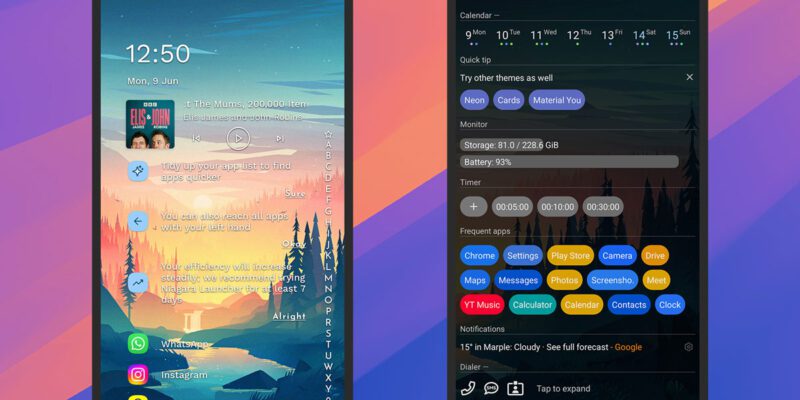
Niagara Launcher takes a radically minimal approach — a single column of your most-used apps on the home screen, everything else accessible by scrolling alphabetically on the right edge. No grid, no widgets by default (though Pro version supports them). Extremely fast for one-handed use, beautiful by minimalist standards, and excellent for focus. Best for users who want simplicity and speed over customization.
Lawnchair: Pixel Launcher Features on Any Phone
Lawnchair is an open-source launcher that brings Google Pixel Launcher features to any Android phone — including the Google Discover feed, Pixel-style app suggestions, and adaptive icon support. It’s the closest you can get to the clean Pixel experience on a Samsung, Xiaomi, or other device. Free and actively maintained.
Smart Launcher 6: AI-Organized App Drawer
Smart Launcher automatically categorizes your apps into groups (communication, social, entertainment, productivity) and learns which apps you use most to surface them prominently. For users with large numbers of apps who find the standard drawer overwhelming, this organization can make the phone genuinely easier to navigate.
KISS Launcher: For Older and Slower Phones
KISS (Keep It Simple, Stupid) is a search-first launcher that’s exceptionally lightweight — under 500KB. The entire interface is a search bar. Type an app name or contact and it surfaces instantly. On older phones where other launchers feel heavy, KISS keeps everything snappy. Also excellent for users who prefer keyboard-style navigation over icons.
How to Switch Launchers Safely
Install the new launcher from the Play Store. Open it and set it as default when prompted, or go to Settings > Apps > Default Apps > Home App. Your current home screen layout is specific to your old launcher — you’ll need to set up the new one from scratch. Keep the old launcher installed for a few days while you set up the new one, so you can switch back if needed.
Views: 282

You may also like
Is Your Android Battery Calibration Off? How to Fix Wrong Percentages
Why Your Android Phone Charges So Slowly and What Actually Fixes It
How to Use Your Phone to Learn About Nutrition Without Getting Confused
More in:Apps

How to Use Your Phone to Build Better Habits That Actually Stick

How to Use Your Phone to Help You Through a Difficult Life Transition

How to Use Your Phone for Better, More Meaningful Travel Experiences

TecRounder is a blog that shares New Technology news from around the world (hence the name TecRounder), including the most recent mobile and gadget information: smartphone features, specifications, and more. You can find the latest technology updates here, including the most recent information on smartphones, laptop computers, and other electronic devices.