 By
By You check your phone bill or data usage stats and the numbers don’t make sense. You haven’t been streaming anything unusual, but your data is gone halfway through the month. The culprit is almost always apps consuming data in the background — and most people have no idea it’s happening.
Find the Actual Culprit First
Go to Settings > Network > Data Usage (or Connections > Data Usage on Samsung). You’ll see a ranked list of apps by data consumed over the billing period. Look for anything that’s using significantly more data than its usage would justify — a news app you rarely open, a social media app, or worst of all, a system service behaving abnormally.
Enable Data Saver System-Wide
Go to Settings > Network > Data Saver and enable it. This tells Android to restrict background data for all apps unless they’re allowlisted. With Data Saver on, apps can only use mobile data when you’re actively using them. Go through the Unrestricted Data Access list and only allow apps that genuinely need background data — maps, email, messaging.
Restrict Background Data Per App
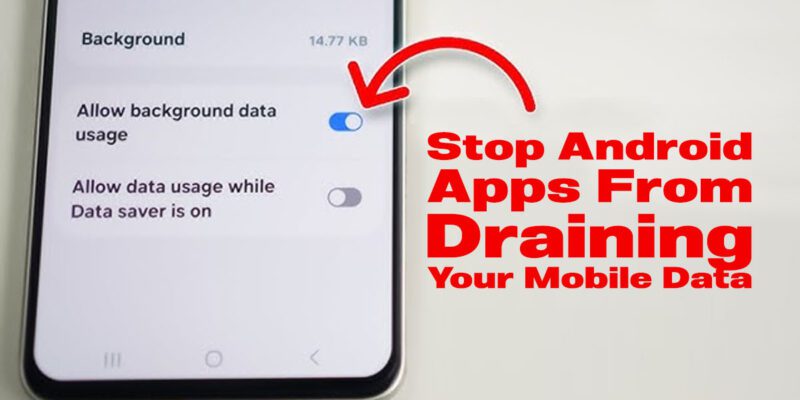
For apps you want to control individually, go to Settings > Apps > [App Name] > Data Usage and disable Allow Background Data Usage. This is more targeted than Data Saver and useful for specific heavy consumers while leaving other apps unrestricted.
Turn Off Auto-Play in Social Media Apps
Instagram, Facebook, X, and TikTok all auto-play videos as you scroll. This consumes enormous amounts of data. In each app’s settings, find the Video Autoplay option and set it to Wi-Fi Only or Off. This one change alone can cut data usage by 30-50% for regular social media users.
Manage Google and Samsung Sync
Automatic syncing of photos, contacts, and app data can use significant background data. Go to Settings > Accounts and for each Google account, tap Sync Account. Identify which sync categories are enabled and disable ones you don’t need syncing constantly — particularly if you have multiple accounts.
Set App Updates to Wi-Fi Only
App updates can be very large. Go to Google Play Store > Settings > Network Preferences > App Download Preference and select Over Wi-Fi Only. Do the same in Galaxy Store if you’re on Samsung. Updates will still happen automatically, just only when connected to Wi-Fi.
Monitor Data Usage Weekly
Set a data usage warning in Settings > Data Usage. Enter your monthly allowance and set a warning at 80% so you get alerted before you run out rather than after. Once you’ve applied all the restrictions above, check back in a week to verify the background consumption has dropped.
Views: 172

You may also like
Why Your Android Phone Charges So Slowly and What Actually Fixes It
How to Use Your Phone to Learn About Nutrition Without Getting Confused

How to Use Your Phone to Document and Share Your Creative Work
More in:Apps

How to Use Your Phone to Build Better Habits That Actually Stick

How to Use Your Phone to Help You Through a Difficult Life Transition

How to Use Your Phone for Better, More Meaningful Travel Experiences

TecRounder is a blog that shares New Technology news from around the world (hence the name TecRounder), including the most recent mobile and gadget information: smartphone features, specifications, and more. You can find the latest technology updates here, including the most recent information on smartphones, laptop computers, and other electronic devices.