Android Phone Won’t Turn On? Here’s How to Fix It Step by Step
 By TecRounder
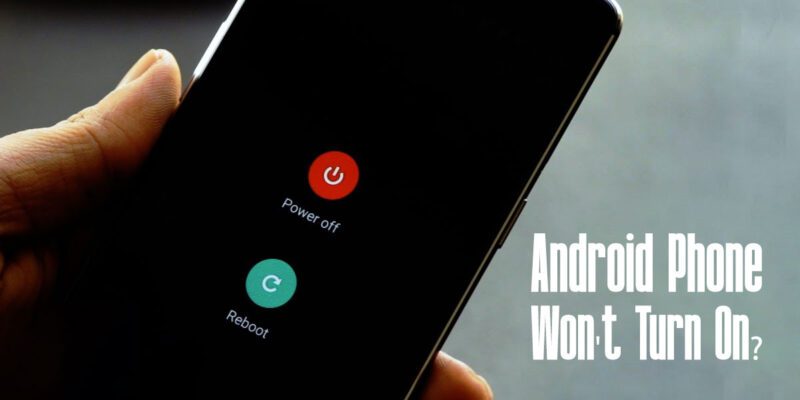
You press the power button and nothing happens. Or you see a black screen. Or the phone vibrates but never shows anything. It’s a horrible sinking feeling — especially if you rely on your phone for work or daily life. Before you assume the worst, work through these steps.
Check If the Battery Is Just Dead
This sounds obvious but it’s the cause more often than you’d expect. Plug your phone into a charger — use a wall adapter, not a computer USB port — and wait 15 minutes before pressing the power button. Severely discharged batteries sometimes need several minutes of charging before they have enough power to show anything on screen.
Forced Restart
A frozen phone sometimes just needs a force restart. Hold the Power button for 10-20 seconds. On Samsung Galaxy phones, hold Volume Down and Power simultaneously for 8-10 seconds. On Pixel phones, hold the power button for 30 seconds. This performs a hardware reset that bypasses any software freeze.
Try a Different Charger and Cable
A faulty cable or charger can prevent a dead phone from charging, making it appear like a hardware failure when it’s actually just not receiving power. If your phone has been off and not charging properly, try a different cable and adapter combination before assuming the phone is broken.
Boot Into Safe Mode
If the phone powers on but won’t complete the boot process, hold Power and Volume Down simultaneously during startup to enter Safe Mode. Safe Mode disables all third-party apps. If the phone boots successfully in Safe Mode, a recently installed app is causing the boot failure. Uninstall recent apps one at a time until the problem resolves.
Boot Into Recovery Mode
If Safe Mode doesn’t work, boot into Recovery Mode. The key combination varies by manufacturer — on Samsung it’s Volume Up + Power + Bixby (on older models) or Volume Up + Power. From recovery, you can wipe the cache partition, which often resolves boot loops caused by corrupted temporary files.
Factory Reset From Recovery (Last Resort)
If nothing else works and you can access Recovery Mode, a factory reset from recovery will restore the phone to working condition. This deletes all your data, so it’s the last option. Select Wipe Data/Factory Reset from the recovery menu. After the reset, the phone should boot normally.
Hardware Failure: When to See a Technician
If the phone shows no signs of life despite a known-good charger, or if it vibrates but the screen remains completely dark, the issue may be hardware — a failed display, a damaged charging port, or a failed battery. A repair technician can diagnose this quickly. Many phone repair shops offer free diagnostics.
Views: 150

You may also like

How to Use Your Phone to Learn About Nutrition Without Getting Confused

How to Use Your Phone to Document and Share Your Creative Work

How to Use Your Phone to Prepare for a Job Interview
More in:Gadgets

How to Use Your Phone to Manage Your Pet’s Health Records and Vet Visits

How to Use Your Phone to Learn Basic First Aid You Might Actually Need

How to Use Your Phone to Create a Morning Routine That Actually Works

TecRounder is a blog that shares New Technology news from around the world (hence the name TecRounder), including the most recent mobile and gadget information: smartphone features, specifications, and more. You can find the latest technology updates here, including the most recent information on smartphones, laptop computers, and other electronic devices.