 By
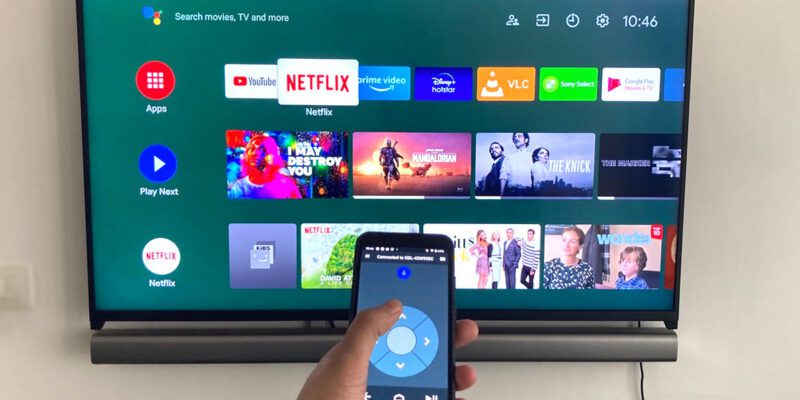
By Remotes are some of the most reliably lost objects in modern homes. They migrate under cushions, fall behind furniture, get left in other rooms, and run out of batteries at peak inconvenience. Your phone can replace most of them — and in many cases offers more convenient control than the physical remote anyway.
Here’s how to set this up for different device types.
Smart TVs: The Direct Approach
Most smart TVs from the last five years can be controlled directly from a phone. Samsung, LG, Sony, and TCL all have official control apps.
Samsung SmartThings: controls Samsung TVs and other Samsung smart home devices. Available on Android and iPhone.
LG ThinQ: controls LG TVs and appliances.
Sony Video & TV SideView: for Sony Bravia TVs.
The TV and phone must be on the same Wi-Fi network. Open the app, it finds the TV automatically, and you can control power, volume, channels, input, and navigate the TV’s interface. For TVs with built-in streaming (Samsung Smart TV, LG webOS, etc.), you can browse and launch streaming services from the phone interface too.
Streaming Devices
Fire TV: the Amazon Fire TV app gives you a remote interface for Fire Stick and Fire TV devices, plus a keyboard for text entry which is dramatically faster than using the on-screen keyboard on the TV remote.
Roku: the Roku Remote app is excellent and includes features the physical remote doesn’t have: voice search (type or speak search terms), private listening (audio plays through your phone’s headphone jack while the TV audio is off), and game controller mode for simple Roku games.
Chromecast/Google TV: Google Home controls Chromecast and Google TV devices.
Apple TV: the Apple TV Remote app (or the built-in Remote in Control Center on iPhone) controls Apple TV. On iPhone, the Siri Remote functionality is also accessible.
Universal Remote Apps: IR Blaster Required
For older TVs, DVD players, cable boxes, and other IR-controlled devices that don’t have Wi-Fi, some Android phones have a built-in IR blaster that can send infrared signals just like a physical remote.
The Samsung Galaxy S series and some other Samsung phones have IR blasters. If yours does, apps like the built-in Samsung SmartThings or third-party apps like AnyMote or ASmart Remote IR can turn your phone into a universal IR remote for any IR device.
iPhone and most non-Samsung Android phones don’t have IR blasters, so they can’t control non-Wi-Fi devices.
Linking Everything Together
Google Home and Amazon Alexa both serve as unified control hubs that handle multiple device types. If your TV is on Wi-Fi, your streaming device is connected, and your lights are smart — Google Home can control all of them from one app. The voice control aspect means you can also control devices hands-free.
The practical limitation of trying to control too many things from one app is complexity: finding the right device in the app sometimes takes as long as finding the physical remote. For one or two devices, app control is excellent. For a full smart home setup, voice control is often more efficient than navigating app interfaces.
Setting Up for Reliability
The main reliability issue with app-based remote control is that the device needs to be on the same Wi-Fi network. If your TV and your phone are on different networks (e.g., the TV on 2.4GHz, phone on 5GHz from a separate SSID), they may not find each other.
Make sure all devices you want to control are on the same Wi-Fi network as your phone, not just connected to the same router with different network names.
Views: 58

You may also like
Is Your Android Battery Calibration Off? How to Fix Wrong Percentages
Why Your Android Phone Charges So Slowly and What Actually Fixes It
How to Use Your Phone to Learn About Nutrition Without Getting Confused
More in:Gadgets
How to Use Your Phone to Document and Share Your Creative Work

How to Use Your Phone to Prepare for a Job Interview

How to Use Your Phone to Manage Your Pet’s Health Records and Vet Visits

TecRounder is a blog that shares New Technology news from around the world (hence the name TecRounder), including the most recent mobile and gadget information: smartphone features, specifications, and more. You can find the latest technology updates here, including the most recent information on smartphones, laptop computers, and other electronic devices.