How to Use Your Phone as a Document Scanner That’s Actually Good
 By
By Dedicated document scanners are large, expensive, and for most people completely unnecessary. Your phone’s camera combined with the right app or feature produces document scans good enough for everything from submitting tax documents to sending signed contracts to archiving paperwork.
Here’s how to get genuinely good quality scans.
Built-In Scanning Features (No Extra App Required)
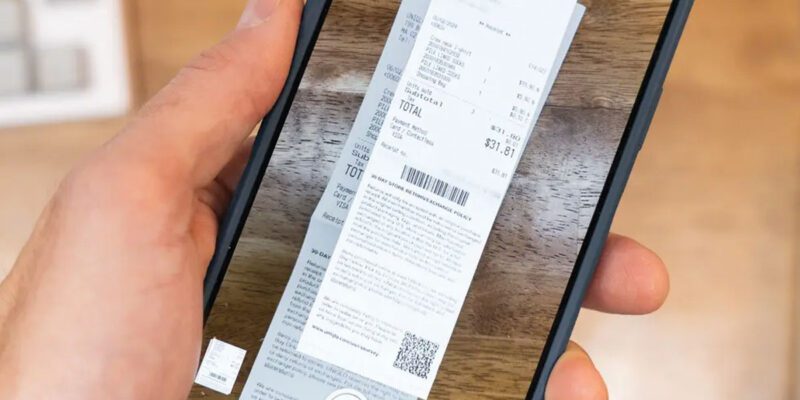
iPhone: Open Notes > Create a new note > tap the camera icon > Scan Documents. The camera activates with document detection overlaid. Hold it over any flat document and it automatically detects the edges and takes the scan when the document fills the frame. Multiple pages can be scanned in sequence to create a multi-page PDF. The result is automatically perspective-corrected and saved as a PDF.
Android (Google Drive): Open Google Drive > tap the + > Scan. The same automatic edge detection and perspective correction applies.
Android (Google Lens): Google Lens has a document scanning mode that can extract text from documents and copy it, or save the image.
These built-in options are good for most everyday scanning needs and require nothing additional to set up.
For Better Quality: Adobe Scan
Adobe Scan (free) consistently produces better-quality scans than most built-in options, particularly for documents with complex formatting, small text, or faded content. It uses AI to enhance contrast, clean up backgrounds (removing shadows and imperfections), and automatically detect document boundaries.
Features worth using: Boundary Detection (automatic), Text Recognition (converts scans to searchable PDFs), Batch Scanning (scan multiple pages into one document), and Form Recognition (for pre-filled forms, identifies fields).
The scanned PDFs integrate directly with Adobe Acrobat for signing and editing.
Microsoft Lens
If you work heavily with Microsoft Office, Microsoft Lens is excellent. It scans to PDF, Word, PowerPoint, or Excel. Whiteboard mode enhances whiteboard photos — brightens the content, removes the background, and corrects perspective — which is useful for photographing meeting notes.
It integrates with OneDrive and sends scans directly to your inbox or OneDrive folder.
Getting Good Scan Quality
Lighting: even lighting with no strong shadows makes the biggest difference to scan quality. Natural daylight from a window is often better than overhead artificial light (which creates shadows). Hold the phone directly above the document and let the camera face straight down.
Stability: camera shake blurs scans. If the lighting is good, the automatic capture (which waits for the camera to stabilize) works well. If you’re manually triggering the shot, tap the camera icon rather than pressing the hardware volume button.
Background contrast: place documents on a dark or contrasting surface for best edge detection. A white document on a white table confuses automatic edge detection. A white document on a dark table is easy for the algorithm to find.
Flat documents: fold lines and creases reduce quality. Where possible, flatten documents before scanning. For books, press firmly to flatten the spine area — the spine shadows are the main quality reducer in book page scanning.
Scanning Receipts for Expenses
For expense reporting, apps like Expensify, Dext (formerly Receipt Bank), and SAP Concur have built-in scanning that extracts merchant name, amount, date, and category automatically. Scanning receipts immediately after purchase and having them automatically categorized removes the monthly expense report nightmare.
Organising Scanned Documents
The hardest part of document scanning isn’t the scanning itself — it’s the organisation. Decide on a naming convention before you start: date_document-type_description (e.g., 20260115_Invoice_ElectricCompany). Consistent naming makes finding documents trivial. Store in a cloud folder (Google Drive, iCloud, Dropbox) that’s backed up and searchable by content.
Views: 131

You may also like

How to Stop Your Kids From Spending Money on Your Phone by Accident

How to Use Your Phone to Manage Your Time When You Work From Home
How to Use Your Phone Camera to Spot Things You’d Otherwise Miss
More in:Gadgets

How to Use Your Phone to Build Better Habits That Actually Stick

How to Use Your Phone to Help You Through a Difficult Life Transition

How to Use Your Phone to Manage Your Mental Load and Stop Forgetting Things

TecRounder is a blog that shares New Technology news from around the world (hence the name TecRounder), including the most recent mobile and gadget information: smartphone features, specifications, and more. You can find the latest technology updates here, including the most recent information on smartphones, laptop computers, and other electronic devices.