How to Stop Your Phone From Tracking Your Location History
 By
By Your phone has probably been building a detailed timeline of everywhere you’ve been for years. Every place you’ve visited, every route you’ve driven, every stop you’ve made — recorded with GPS precision and timestamps. This is your location history, and both Google and Apple collect it by default.
Here’s what it is, who can see it, and how to turn it off.
What Location History Actually Looks Like
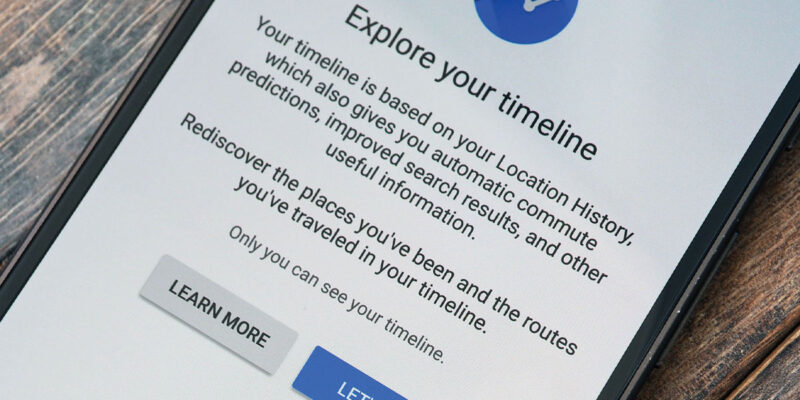
Go to timeline.google.com and sign in with your Google account. What you see is a day-by-day map of your movements. Select any date from the past and you’ll likely see a detailed map with each location visited, how long you spent there, how you traveled between them (driving, walking, cycling), and distances.
This is comprehensive and, for most people, surprising. It’s stored on Google’s servers and accessible to Google for advertising purposes, to law enforcement with a warrant, and potentially in data breaches.
If you’ve never looked at this, it’s worth knowing it exists before deciding whether you’re comfortable with it.
Turning Off Google Location History
At myaccount.google.com, go to Data & Privacy > Location History > Turn Off.
When you turn it off, new location data stops being stored. Existing data remains until you delete it. To delete existing data: at the same location history settings page, select “Delete All Location History” or delete specific time periods.
Set auto-deletion to ensure any future location data that might be collected is automatically removed after 3 months: Location History settings > Auto-Delete > Auto-Delete Activity Older Than 3 months.
Turning Off iPhone Location Services
iPhone location services involve multiple layers:
Settings > Privacy & Security > Location Services: this is the master control for all location access. You can turn it off entirely (which breaks Maps, weather, and other location-dependent apps) or manage it per-app.
For Significant Locations (Apple’s own location history feature): Settings > Privacy & Security > Location Services > System Services > Significant Locations. This is where iPhone stores a history of places you visit frequently. Turn it off and delete history there.
For sharing location with Apple: Settings > Privacy & Security > Location Services > System Services > Apple Ads (disable). Also Homekit, Networking & Wireless (these use Wi-Fi data for location).
Per-App Location: The Ongoing Work
Location services on the device itself — for navigation, nearby searches, weather — are different from cloud-stored location history. Even with location history off, apps with location permission can still access your current position while you’re using them.
Review your per-app location permissions (covered in detail in the separate location permissions article). The goal is to grant “While Using” access to apps that need your current location to function, and deny access to apps that don’t.
Airplane Mode and the Limits of These Settings
With Location Services off at the system level, most apps cannot access your GPS position. However, other location inferences remain possible — your IP address suggests your general location, Wi-Fi networks your phone has connected to suggest where you’ve been, and cellular tower data (controlled by your carrier, not your phone’s settings) indicates your general location.
Turning off location on your phone reduces data collection significantly but doesn’t make you invisible. For truly location-private mobile use, that’s a considerably more complex undertaking involving different hardware and network configurations beyond the scope of a settings change.
Views: 48

You may also like

How to Stop Your Kids From Spending Money on Your Phone by Accident

How to Use Your Phone to Manage Your Time When You Work From Home
How to Use Your Phone Camera to Spot Things You’d Otherwise Miss
More in:Gadgets

How to Use Your Phone to Build Better Habits That Actually Stick

How to Use Your Phone to Help You Through a Difficult Life Transition

How to Use Your Phone to Manage Your Mental Load and Stop Forgetting Things

TecRounder is a blog that shares New Technology news from around the world (hence the name TecRounder), including the most recent mobile and gadget information: smartphone features, specifications, and more. You can find the latest technology updates here, including the most recent information on smartphones, laptop computers, and other electronic devices.