Why Your Phone Is Using So Much Data and How to Drastically Cut It Down
 By
By Mobile data is one of those things you don’t think about until you’ve used too much of it and either get throttled or receive an unexpectedly large bill. The frustrating thing is that data usage isn’t always correlated with how much you actually use your phone — background processes can quietly consume gigabytes while your phone sits in your pocket.
Here’s how to understand what’s actually happening and cut it down.
Find the Exact Culprits
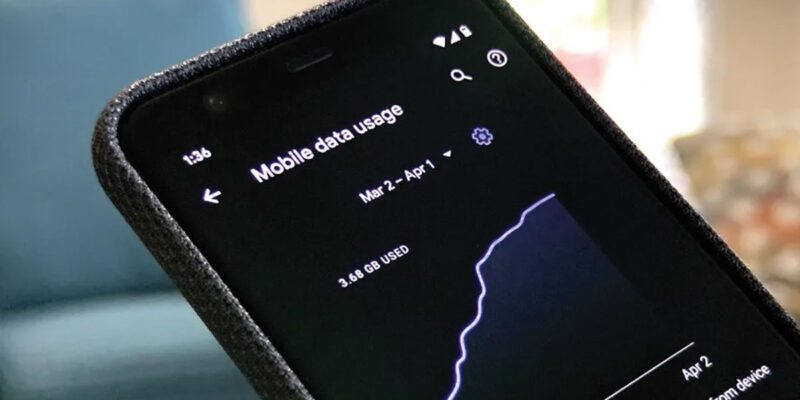
On Android: Settings > Network > Data Usage > App Data Usage. This shows you every app’s data consumption over the billing period, broken down by foreground (when you’re using the app) and background (when you’re not).
On iPhone: Settings > Cellular > scroll down to see per-app data usage for the current period.
Look specifically at background data. An app that’s using 3GB in the background while you’ve barely touched it is the problem to focus on first.
The Usual Heavy Data Users
Video streaming is the biggest data consumer — Netflix at HD quality uses about 1GB per hour. YouTube at 1080p uses roughly 2GB per hour. If you’re watching video on mobile data, reducing quality to 480p or 720p cuts consumption dramatically with visually little difference on a phone screen.
Social media apps auto-play videos as you scroll through feeds. Instagram, TikTok, Facebook, and Twitter/X all do this. In each app’s settings, find video auto-play and set it to “Wi-Fi Only.” This alone can save hundreds of megabytes per day for active social media users.
Streaming music: less than video but still significant. Spotify at highest quality uses about 150MB per hour. Setting music streaming to “Normal” quality cuts this to about 40MB per hour with minimal audible difference on phone speakers or earphones.
App Updates Over Mobile Data
App updates can be large — particularly games and productivity apps. Configure both Google Play Store and Apple App Store to only update apps over Wi-Fi.
On Android: Google Play > Settings > Network Preferences > App Download Preference > Over Wi-Fi Only.
On iPhone: Settings > App Store > disable “App Updates” under Cellular Data.
Cloud Syncing Settings
Google Photos, iCloud, Dropbox, and similar services sync photos and files continuously. Configure each to only sync over Wi-Fi.
Google Photos: Open app > Profile > Photos Settings > Backup > Mobile Data Usage > set to “Don’t backup while on mobile data.”
iCloud: Settings > [Your Name] > iCloud > Photos > Mobile Data, disable.
Low Data Mode
Both Android and iPhone have a system-level Low Data Mode that tells all apps to reduce data usage.
iPhone: Settings > Cellular > Low Data Mode.
Android: Settings > Network > Data Saver.
When enabled, apps reduce background sync, streaming services lower quality, and system functions reduce network activity. Enable this when you know you’re running low on data for the month.
Tethering and Hotspot Usage
If you use your phone as a hotspot, this counts against your data allowance. Laptop use of your hotspot can consume gigabytes quickly, especially if the laptop hasn’t been configured as a metered connection (see the hotspot article for specific settings).
Set a Data Warning
Configure a data usage warning in Settings. On Android: Settings > Network > Data Usage > Billing Cycle > Set Data Warning. On iPhone: your carrier’s app typically lets you set alerts. Getting a warning at 80% of your allowance gives you time to adjust behavior before hitting your limit rather than finding out after.
Views: 88

You may also like
How to Use Your Phone Camera to Spot Things You’d Otherwise Miss

How to Use Your Phone to Build Better Habits That Actually Stick

How to Use Your Phone to Help You Through a Difficult Life Transition
More in:Gadgets

How to Use Your Phone to Manage Your Mental Load and Stop Forgetting Things

How to Use Your Phone to Reduce Your Environmental Impact
How to Use Your Phone to Make Better Decisions

TecRounder is a blog that shares New Technology news from around the world (hence the name TecRounder), including the most recent mobile and gadget information: smartphone features, specifications, and more. You can find the latest technology updates here, including the most recent information on smartphones, laptop computers, and other electronic devices.