How to Speed Up Your Wi-Fi by Changing One Router Setting
 By
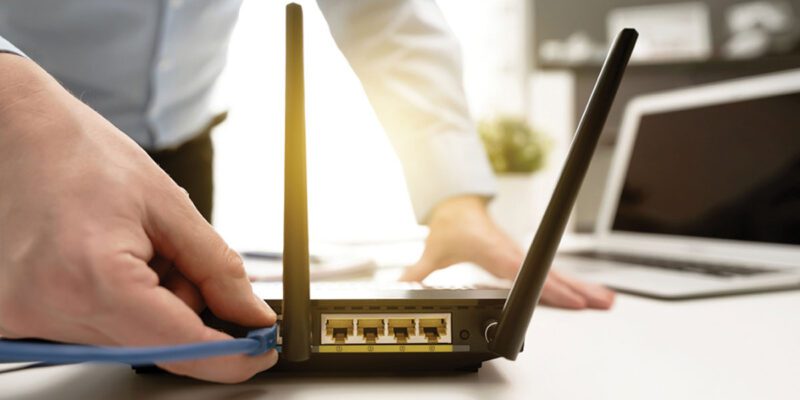
By Most people use whatever router settings their internet service provider set up by default. Those defaults are designed for average conditions, not for your specific home or the level of Wi-Fi congestion in your particular area. Changing one specific setting — your Wi-Fi channel — can noticeably improve speed and reliability.
Here’s how to do it and what else is worth checking while you’re in your router settings.
The Channel Problem
Wi-Fi routers broadcast on channels within the 2.4GHz and 5GHz frequency bands. In the 2.4GHz band, there are 11 channels (in the US) or 13 channels (in Europe), but only 3 of them (1, 6, and 11) don’t overlap with each other. In the 5GHz band, there are more non-overlapping channels available.
The problem: your router ships with a default channel — often channel 1 or channel 6 — and so does every other router in your building or neighbourhood. If every router in your apartment building is on channel 6, they’re all fighting for the same airspace, creating interference that degrades everyone’s speed.
Finding the Best Channel
On Android, download “Wi-Fi Analyzer” (a free app). It shows you a graph of all visible Wi-Fi networks and which channels they’re using. You can clearly see which channels are congested and which have space. Pick a channel that has the least competition.
On iPhone, there isn’t a direct third-party Wi-Fi analyzer (Apple restricts this), but you can access similar information through the built-in Wireless Diagnostics app (hold Option while clicking the Wi-Fi menu bar icon on a Mac connected to your network).
Changing Your Router’s Wi-Fi Channel
Access your router’s admin panel. Usually by typing 192.168.0.1 or 192.168.1.1 in a browser. The login details are often printed on the bottom of the router.
Find the Wireless Settings section. Look for Channel or Wi-Fi Channel — it may be under Advanced Settings.
Change from Auto to the specific channel you identified as least congested. Save and restart the router.
The improvement in speed and reliability can be significant, particularly in apartment buildings or dense suburban areas where many routers compete.
Other Router Settings Worth Checking
5GHz band vs 2.4GHz band: 5GHz is faster but has shorter range. 2.4GHz is slower but penetrates walls better. If your phone is in the same room as the router, make sure it’s connecting to the 5GHz band for maximum speed. If your router broadcasts them as the same network name (SSID), the phone chooses automatically. If they have different names, manually connect to the 5GHz version when you’re close to the router.
QoS (Quality of Service): some routers have QoS settings that let you prioritize certain devices or types of traffic. Prioritizing your primary working device or video call traffic over background device updates can improve the quality of important activities.
Firmware: check whether your router has a firmware update available. Router manufacturers push updates that fix security vulnerabilities and sometimes include performance improvements. This is usually found in the Administration or Maintenance section of your router’s admin panel.
Band Steering: if your router supports it, Band Steering automatically connects devices to the most appropriate band (2.4GHz or 5GHz) based on signal quality. Enable it for more automated optimisation.
When a Setting Change Isn’t Enough
If changing the channel improves things but your home still has significant dead zones or slow speeds in certain rooms, the physical layout of your home relative to the router matters more than settings. A mesh network system (Eero, Google Nest Wi-Fi, or similar) addresses coverage problems that settings can’t solve.
Views: 28

You may also like

How to Stop Your Kids From Spending Money on Your Phone by Accident

How to Use Your Phone to Manage Your Time When You Work From Home
How to Use Your Phone Camera to Spot Things You’d Otherwise Miss
More in:Gadgets

How to Use Your Phone to Build Better Habits That Actually Stick

How to Use Your Phone to Help You Through a Difficult Life Transition

How to Use Your Phone to Manage Your Mental Load and Stop Forgetting Things

TecRounder is a blog that shares New Technology news from around the world (hence the name TecRounder), including the most recent mobile and gadget information: smartphone features, specifications, and more. You can find the latest technology updates here, including the most recent information on smartphones, laptop computers, and other electronic devices.