 By
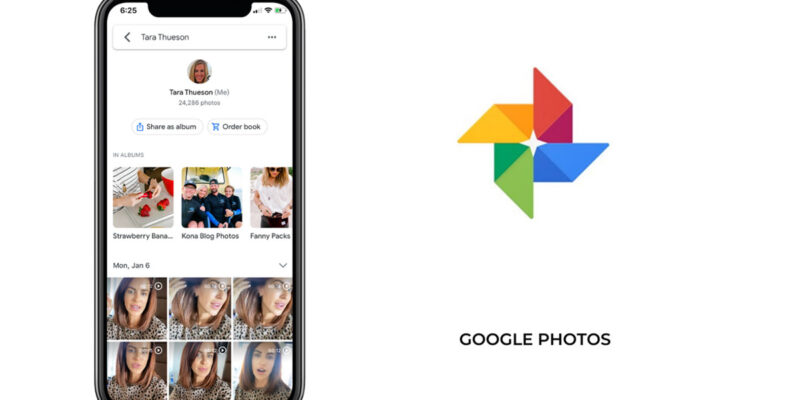
By Most people use Google Photos as a backup service and nothing more. But its AI-powered search, organization, and editing tools make it genuinely one of the most capable photo management systems available — for free. Here’s how to actually use it.
Search for Anything in Natural Language
Google Photos’ search understands natural language and context. Search for ‘beach sunset 2023,’ ‘birthday cake,’ ‘hiking boots,’ ‘white dog,’ or ‘times I was in Paris.’ It searches by objects, places, events, colors, and people. You can find a specific photo from years ago faster than you could manually scroll. The AI understands what’s in your photos without any manual tagging.
People and Pet Folders
Google Photos automatically groups photos by the faces it recognizes. In the Explore tab or Search, look for People & Pets. Assign names to the faces it’s identified. Once named, you can search ‘photos of [name]’ and get every photo of that person in your library instantly. Extremely useful for finding photos of family members without scrolling years of content.
Create Albums That Stay Updated Automatically
Create a shared album for an ongoing project, a trip, or a family event. Google Photos can add relevant photos automatically as you take them, and you can invite others to contribute. The album updates without manual curation. Shared albums also let family members see and add photos from their own devices to a common collection.
Free Up Phone Storage Safely
Once photos are backed up to Google Photos, tap your profile picture > Manage Storage > Free up Space. This removes locally stored original photos from your device since they’re safely in the cloud. Before doing this, verify all photos show a cloud checkmark (fully backed up) and test that you can access your photos when offline on a cellular connection.
Use the Magic Eraser and Editing Tools
Google Photos includes several AI editing tools. Magic Eraser removes unwanted objects from photos. Photo Unblur sharpens blurry photos. HDR effect enhances flat-looking photos. Colorize turns black and white photos into color. Many of these are available free with a Google account — check the Edit screen in Photos for available tools on any photo.
Create Automatic Memories and Highlights
Google Photos automatically creates highlights and memories from your photo history, often surprising you with combinations you’d never have put together manually. For special occasions, use the Create Movie feature to generate an edited highlight video from a set of photos and videos with music. These make excellent gifts and social shares without manual video editing.
Lock Folder for Sensitive Photos
Google Photos has a Locked Folder (in the Library tab) that stores photos separately from your main library, protected by your phone’s screen lock. Photos in this folder are not backed up to Google’s servers — they exist only on your device. Use it for sensitive documents, ID photos, or private photos you want available but not in your general library.
Views: 32

You may also like

How to Stop Your Kids From Spending Money on Your Phone by Accident

How to Use Your Phone to Manage Your Time When You Work From Home
How to Use Your Phone Camera to Spot Things You’d Otherwise Miss
More in:Apps

How to Use Your Phone to Build Better Habits That Actually Stick

How to Use Your Phone to Help You Through a Difficult Life Transition

How to Use Your Phone to Manage Your Mental Load and Stop Forgetting Things

TecRounder is a blog that shares New Technology news from around the world (hence the name TecRounder), including the most recent mobile and gadget information: smartphone features, specifications, and more. You can find the latest technology updates here, including the most recent information on smartphones, laptop computers, and other electronic devices.