 By
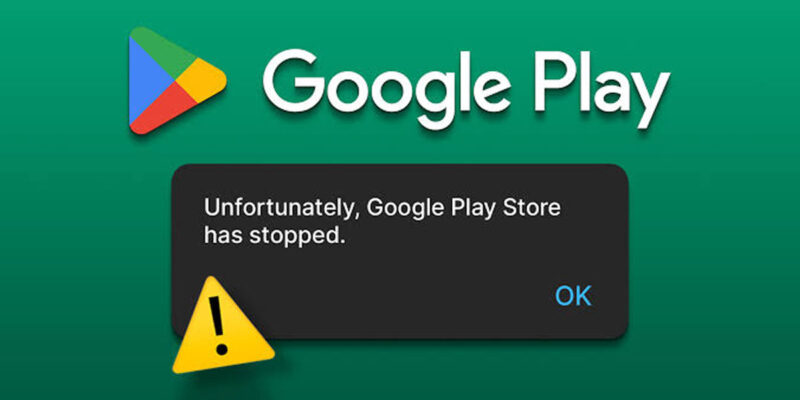
By The Google Play Store has a handful of recurring problems that affect a large number of Android users at any given time — download failures, error codes, apps stuck on updating, or the store refusing to open. Here’s how to fix the most common ones.
Clear Play Store Cache and Data
Settings > Apps > Google Play Store > Storage > Clear Cache, then Clear Data. This resets the Play Store to a clean state without removing your apps or purchase history. The majority of random Play Store errors — download failures, loops, error messages — are resolved by this simple fix. After clearing data, sign back into your Google account in the Play Store if prompted.
Clear Google Play Services Cache
Play Store depends heavily on Google Play Services. Settings > Apps > enable Show System Apps > Google Play Services > Storage > Clear Cache. Don’t clear data for Play Services (this can cause bigger problems). The cache clear is sufficient and fixes many issues where Play Store appears to work but downloads stall or fail.
Re-Sign into Google Account
Settings > Accounts > Google > tap your account > three dots > Remove Account. Restart your phone. Go to Settings > Accounts > Add Account > Google and sign back in. This refreshes your authentication tokens and resolves Play Store issues caused by expired or corrupted sign-in credentials. Ensure your Google account password is current before removing it.
Check Date and Time Settings
Incorrect date and time settings break Play Store’s authentication against Google’s servers. Settings > General Management > Date and Time and enable Set Automatically. Incorrect time settings cause authentication failures that appear as generic Play Store errors with no helpful description.
Fix Insufficient Storage Errors
Play Store’s ‘Insufficient Storage’ error sometimes appears even when you appear to have storage space. Clear app caches (Settings > Storage > Cached Data or per-app), free up actual storage by deleting files, and then attempt the download again. The Play Store also needs working space for downloads — ensure at least a few GB are free beyond what the app size requires.
Update Google Play Services Manually
An outdated Google Play Services version causes the same problems as a corrupted one. Go to Settings > Apps > Google Play Services and check the version. If it’s significantly old, go to Google’s website and search for the latest Google Play Services APK for your device architecture, download it, and install it (requires enabling Install from Unknown Sources temporarily).
Country or Payment Method Restrictions
Some apps are not available in specific countries or require a payment method registered in a specific country. If you’re getting ‘this item isn’t available in your country’ errors, your Google account location may not match your physical location. Go to pay.google.com and verify your account’s country setting. Note that changing country settings has a 12-month waiting period, so this isn’t a quick fix for region restrictions.
Views: 140

You may also like

How to Handle Phone Anxiety and the Constant Pressure to Be Available
How to Use Your Phone to Plan and Track Your Garden or Allotment

How to Stop Your Kids From Spending Money on Your Phone by Accident
More in:Apps

How to Use Your Phone to Build Better Habits That Actually Stick

How to Use Your Phone to Help You Through a Difficult Life Transition

How to Use Your Phone to Manage Your Mental Load and Stop Forgetting Things

TecRounder is a blog that shares New Technology news from around the world (hence the name TecRounder), including the most recent mobile and gadget information: smartphone features, specifications, and more. You can find the latest technology updates here, including the most recent information on smartphones, laptop computers, and other electronic devices.