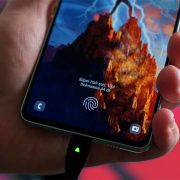
How to Use Your Phone to Stay Safe When You’re Travelling Alone
 By
By Solo travel — whether a weekend trip to a new city or an extended journey through unfamiliar countries — is one of the most enriching things a person can do. It’s also the context where having your phone properly set up for safety matters most, because there’s no travel companion to notice if something’s wrong.
Share Your Itinerary With Someone You Trust
Before any solo trip, share your itinerary with at least one person who isn’t travelling with you: where you’re staying, your planned activities day by day, and your contact information at each location. Update them when plans change significantly.
This person doesn’t need to be actively monitoring you — but if they don’t hear from you when expected, they know where to start looking and who to contact. This is the most basic and most important safety measure for solo travel.
Google Calendar shared itinerary, a shared notes document, or even a simple email before departure all work. The important thing is that someone who isn’t with you knows your plan.
Location Sharing for Specific Activities
For activities with elevated risk — hiking in remote areas, meeting someone you’ve only communicated with online, taking a taxi in an unfamiliar city — turn on temporary location sharing.
iPhone: in Messages, tap the person’s contact > Info > Share My Location. Set duration. Android: in Google Maps > Share Location, select a contact and duration.
WhatsApp: in a chat, tap + > Location > Share Live Location > select duration.
This doesn’t need to be permanent or with everyone. Selective location sharing for specific higher-risk moments is the appropriate use.
Safety Check-In Protocols
Agree on a check-in schedule with your contact before departure: “I’ll message you each evening by 9pm local time. If you don’t hear from me, try calling. If you can’t reach me by 11pm, contact [specific person or authority].”
The key is specificity — what does your contact actually do if they don’t hear from you? Without this agreement, a missed check-in creates worry but no action.
Emergency Information Accessible Without Unlock
Set up your Medical ID (iPhone: Health app > Medical ID > Edit > Show When Locked; Android: Settings > Emergency Information) with your blood type, allergies, and emergency contacts.
Add a note with key information: travel insurance policy number and emergency contact, your home country’s emergency number (different from local emergency number), and one or two people to contact.
Know Local Emergency Numbers
The standard 999 (UK), 112 (EU), 911 (US), and 000 (Australia) work in many countries, but some countries have different primary numbers. Google the emergency number for your destination before arrival and save it in your phone’s contacts labelled “Emergency.”
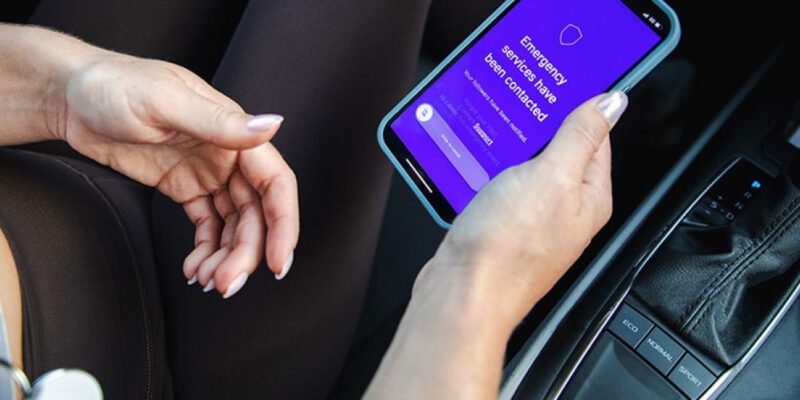
Many modern phones allow emergency calls without unlocking — hold the power button and select Emergency Call, or use the Emergency SOS feature. Make sure you know how to do this on your specific device before you need to.
Trust Your Instincts and Have a Ready Excuse
No app replaces the skill of trusting your instincts and removing yourself from situations that feel wrong. Your phone can support this: have a pre-agreed “rescue” system with a friend. If you text them a specific word or emoji, they call you immediately claiming an emergency. This gives you a face-saving exit from situations you want to leave.
“That was my friend, I have to go” is more comfortable in some cultures than saying directly that you’re uncomfortable. Having this option prepared makes using it easier.
Camera as Documentation
Photograph your accommodation’s address, key landmarks in your neighbourhood, and the number plates of taxis before getting in. Not paranoid — practical. If you need to describe where you are or where you’ve been, this information is available.
Photograph your passport, travel insurance documents, and key cards before departure. Store these in cloud storage — accessible from any device if the physical documents are lost.
Views: 25

You may also like
How to Use Your Phone to Plan and Track Your Garden or Allotment

How to Use Your Phone to Help You Through a Difficult Life Transition
How to Use Your Phone for Better, More Meaningful Travel Experiences
More in:Technology

How to Use Your Phone to Manage Your Mental Load and Stop Forgetting Things

How to Use Your Phone to Reduce Your Environmental Impact
How to Use Your Phone to Make Better Decisions

TecRounder is a blog that shares New Technology news from around the world (hence the name TecRounder), including the most recent mobile and gadget information: smartphone features, specifications, and more. You can find the latest technology updates here, including the most recent information on smartphones, laptop computers, and other electronic devices.