How to Fix Samsung One UI Bugs and Glitches Without a Factory Reset
 By
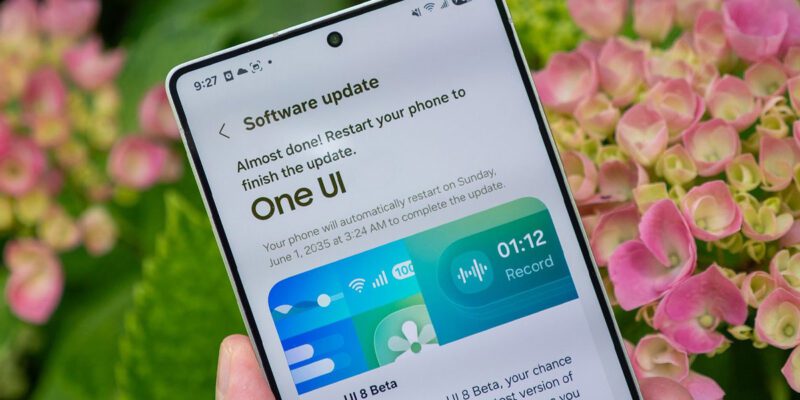
By Samsung’s One UI is feature-rich but comes with a distinctive set of bugs and quirks that don’t affect other Android phones. If you’ve been experiencing weird behavior specific to your Galaxy phone, here are the targeted fixes for One UI’s most common issues.
One UI Edge Panel Freezing or Disappearing
If Edge Panels are freezing, not responding, or the handle disappears, go to Settings > Display > Edge Panels and toggle the feature off and on. If it persists, long-press an empty area of the home screen, select Edge Panel Settings, and reset panel positions. In persistent cases, go to Settings > Apps > enable Show System Apps > find Edge Panel Apps and clear its cache and data.
Good Lock App Causing System Instability
Samsung’s Good Lock app (from Galaxy Store) is a powerful customization tool, but its modules sometimes conflict with One UI updates, causing UI glitches, animation problems, and home screen instability. If issues appeared after installing or updating Good Lock modules, uninstall individual modules one at a time (NiceLock, Home Up, etc.) to identify the conflicting one. The Good Lock app itself is typically fine but specific modules may need updates after each One UI version update.
One UI Home Launcher Crashing
If the Samsung home screen launcher is crashing or showing error messages, go to Settings > Apps > enable Show System Apps > find One UI Home > Storage > Clear Cache, then Clear Data. This resets your home screen layout but resolves most launcher stability issues. Reconfigure your home screen afterward. If crashes continue, check Galaxy Store for a One UI Home update.
Samsung Internet Browser Slow or Crashing
Samsung Internet accumulates significant cache from years of browsing. Open Samsung Internet > three-bar menu > Settings > Personal Browsing Data > Delete Browsing Data. Select all categories and delete. Also check Settings > Apps > Samsung Internet > Storage > Clear Cache. If Samsung Internet is still crashing, check Galaxy Store for updates — Samsung Internet updates through Galaxy Store rather than Google Play.
One UI Notification Issues After an Update
After One UI updates, notification settings sometimes reset or behave inconsistently. Go to Settings > Notifications and review all settings. Check Battery > Background Usage Limits and verify important apps haven’t been moved to Sleeping status. The most common post-update notification problem is that apps get quietly put in sleeping mode, preventing notification delivery until you manually remove them from the sleeping list.
Fix Bixby Home (Samsung Daily) Refreshing Constantly
Samsung Daily (accessed by swiping right on the home screen) sometimes refreshes continuously, consuming battery and data. Disable it by long-pressing the home screen, tapping Home Screen Settings, and toggling off Samsung Daily. If you want to keep it but reduce its refresh activity, open it > three dots > Settings and reduce refresh frequency.
One UI Safe Mode for Diagnosis
To isolate whether a One UI problem is caused by a third-party app, boot into Safe Mode (hold Power > long-press Power Off). In Safe Mode, only Samsung’s pre-installed software runs. If the problem disappears in Safe Mode, it’s a third-party app conflict. If the problem persists in Safe Mode, it’s either One UI itself or Samsung’s system apps — try clearing cache partition from recovery mode as the next step.
Views: 91

You may also like
How to Use Your Phone to Learn Basic First Aid You Might Actually Need

How to Use Your Phone to Create a Morning Routine That Actually Works

How to Handle Phone Anxiety and the Constant Pressure to Be Available
More in:Gadgets
How to Use Your Phone to Plan and Track Your Garden or Allotment

How to Stop Your Kids From Spending Money on Your Phone by Accident

How to Use Your Phone to Manage Your Time When You Work From Home

TecRounder is a blog that shares New Technology news from around the world (hence the name TecRounder), including the most recent mobile and gadget information: smartphone features, specifications, and more. You can find the latest technology updates here, including the most recent information on smartphones, laptop computers, and other electronic devices.