Samsung Galaxy Camera Tips: Get Better Photos Without a Photography Course
 By
By Samsung Galaxy phones have some of the best cameras on the market. But most people use auto mode and accept whatever the phone decides. Spending 20 minutes learning a few key settings will produce noticeably better photos without requiring photography knowledge.
Understand When to Use Which Lens
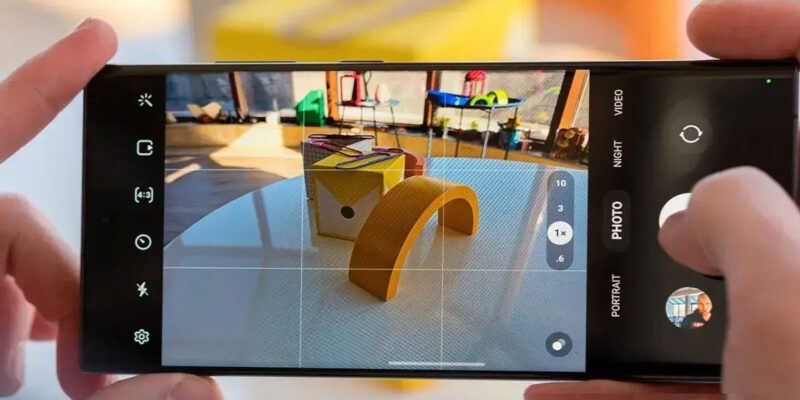
Most Galaxy phones have three lenses: ultra-wide (0.6x), main (1x), and telephoto (3x, 5x, or 10x depending on model). The main 1x lens is your sharpest for everyday shots. The telephoto gives you optical zoom with no quality loss — use it for portraits, distant subjects, and when you want background compression. The ultra-wide works well for landscapes and interior spaces. Avoid 2x zoom, which is digital on most phones.
Use Expert RAW or Pro Mode for Control
Samsung’s Pro mode lets you control ISO (light sensitivity), shutter speed, white balance, and focus manually. For night shots, lower ISO (100-400) with a slow shutter on a stable surface eliminates noise. For action shots, fast shutter speed (1/500 or faster) freezes motion. Start with Pro mode and adjust just one setting at a time until you understand what each does.
Night Mode: How to Use It Properly
Night mode takes multiple exposures and combines them to reduce noise in dark environments. For best results: use a stable surface or the camera’s built-in timer to avoid camera shake, let the exposure fully complete (the circular timer must finish), and use the telephoto lens for distant night subjects rather than the main lens at full digital zoom.
Portrait Mode: Adjust Background Blur
Samsung’s portrait mode adds simulated background blur. In portrait mode, adjust the blur intensity — Samsung defaults to a level that often looks artificial. A slight blur (blur level 3-5 out of 10) looks more natural than the maximum blur that makes the separation obvious. After taking the portrait, you can adjust the blur level in Gallery before sharing.
Use the Grid and Composition Guides
Enable the grid overlay in Camera Settings. The rule of thirds grid helps you place subjects at intersection points rather than dead center, which typically produces more visually interesting compositions. Samsung’s Shot Suggestions (in camera settings) can also actively guide you toward better compositions for scenes the AI recognizes.
Disable Scene Optimizer for More Accurate Colors
Samsung’s Scene Optimizer boosts saturation and contrast aggressively for food, landscapes, and other recognized scenes. The results look impressive on a phone screen but often appear oversaturated when viewed on a monitor or printed. Disable it in Camera Settings if you prefer more natural colors or plan to edit photos yourself afterward.
Shoot RAW for Serious Editing
In Pro mode, change the file format to RAW or RAW+JPEG. RAW files contain all the sensor data before Samsung’s processing is applied, giving you full control in editing apps like Lightroom Mobile. This lets you adjust exposure, highlights, shadows, and color accurately in post without the artificial sharpening and noise reduction Samsung applies to JPEGs.
Views: 54

You may also like

How to Stop Your Kids From Spending Money on Your Phone by Accident

How to Use Your Phone to Manage Your Time When You Work From Home
How to Use Your Phone Camera to Spot Things You’d Otherwise Miss
More in:Gadgets

How to Use Your Phone to Build Better Habits That Actually Stick

How to Use Your Phone to Help You Through a Difficult Life Transition

How to Use Your Phone to Manage Your Mental Load and Stop Forgetting Things

TecRounder is a blog that shares New Technology news from around the world (hence the name TecRounder), including the most recent mobile and gadget information: smartphone features, specifications, and more. You can find the latest technology updates here, including the most recent information on smartphones, laptop computers, and other electronic devices.