 By
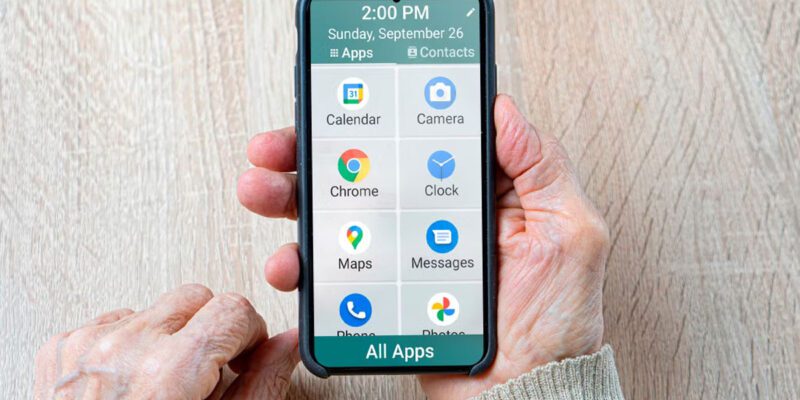
By Android phones offer powerful features for making the interface more accessible to elderly users — larger text, simplified interfaces, louder audio, and reduced complexity. Setting these up properly can make the difference between a frustrating experience and one that genuinely works. Here’s a comprehensive setup guide.
Increase Text Size and Display Size
Settings > Accessibility > Font Size and Style. Increase font size to Large or Very Large. Also go to Settings > Display > Screen Zoom and increase it. Display size affects all interface elements — icons, buttons, menus — not just text. Start with Large for both and adjust based on feedback. Most elderly users benefit from noticeably larger text without losing much screen real estate at Large setting.
Enable Easy Mode (Samsung)
Samsung phones have an Easy Mode (Settings > Display > Easy Mode) that simplifies the home screen layout, increases icon and text sizes, and reduces interface clutter. It also adds an emergency call button visible from the lock screen. Easy Mode is genuinely well-designed for users who find the standard Android interface overwhelming. Turn it on and adjust from there.
Increase Volume Limits and Enable Hearing Aid Compatibility
Settings > Sounds and Vibration > Volume. Remove volume limits if enabled. Settings > Accessibility > Hearing Enhancements > enable Sound Balance if one ear is weaker, and enable Hearing Aid Compatibility if hearing aids are in use. Also enable Mono Audio for users who use only one earphone. These adjustments significantly improve the phone experience for users with any hearing reduction.
Configure the Emergency SOS Button
Settings > Advanced Features > SOS Emergency or Emergency SOS. Configure rapid power button presses to automatically call emergency services and send location to designated contacts. For elderly users living alone, this is one of the most genuinely important features to set up. Test it together to confirm it’s working correctly before leaving them with the phone.
Set Up a Simple Home Screen
Remove all apps from the home screen except the ones actually used — typically: Phone, Messages, WhatsApp or FaceTime equivalent, Camera, and perhaps one or two others. Use large icon layouts (fewer icons per row, bigger touch targets). Add the most frequently called contacts to the home screen as direct dial shortcuts so calling family members is a single large tap rather than navigating through the contacts app.
Enable Touch Accommodations
Settings > Accessibility > Interaction and Dexterity. Increase Touch and Hold Delay to Long — this prevents accidental triggers of long-press menus from normal touches. Enable Ignore Repeated Touches to prevent accidental double-taps registering as two separate inputs. If touch accuracy is a problem, consider a stylus, which provides more precise targeting than a fingertip for smaller interface elements.
Set Up Family Sharing and Remote Help
Google Family Link allows you to view app usage, manage apps, and provide assistance remotely — useful for helping an elderly parent troubleshoot without being physically present. QuickSupport by TeamViewer allows full remote screen sharing with permission — you can see their screen and guide them through problems in real time. Setting this up before there’s a problem means you’re ready when help is needed.
Views: 66

You may also like

How to Use Your Phone to Stay Financially Organised During a Life Event

How to Use Your Phone to Stay Motivated When You Feel Like Giving Up

How to Use Your Phone to Get More From Your Doctor’s Appointments
More in:Gadgets
How to Use Your Phone to Create and Stick to a Weekly Meal Plan
How to Use Your Phone to Research and Buy a Used Car Safely
How to Use Your Phone to Stay Safe and Informed During Bad Weather

TecRounder is a blog that shares New Technology news from around the world (hence the name TecRounder), including the most recent mobile and gadget information: smartphone features, specifications, and more. You can find the latest technology updates here, including the most recent information on smartphones, laptop computers, and other electronic devices.