iPhone Overheating After an iOS Update? Here’s How to Actually Fix It
 By
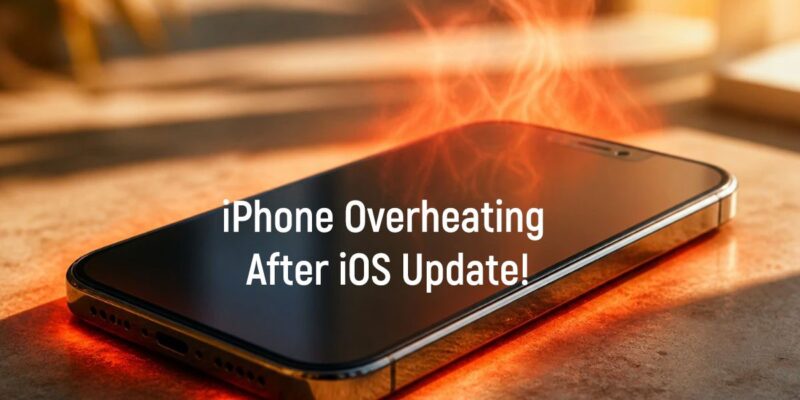
By If your iPhone started running hot right after installing an iOS update, you’re experiencing one of the most common post-update complaints — and one of the most misunderstood. The good news is that in most cases, this is temporary and fixable. The bad news is that a lot of the advice floating around online is either wrong or just not helpful.
Here’s what’s actually going on and what you can do about it.
Why Does This Happen After an Update?
Right after an iOS update installs, your iPhone does a significant amount of background work. It’s re-indexing Spotlight search, re-processing your photo library, re-syncing iCloud, and letting apps update themselves. All of this happens in the background and drives up CPU usage for anywhere from a few hours to a couple of days after the update. The heat you feel is usually this process, not a defect.
Step 1: Give It 24 to 48 Hours
If you updated within the last day, put the phone on charge in a cool place and let it run through its background processes. This sounds unsatisfying, but it genuinely resolves the issue for many people. If the phone is still abnormally hot after 48 hours of normal use, move on to the next steps.
Step 2: Force Restart the Phone
A force restart clears RAM and stops any stuck processes. On iPhone 8 and later: press and quickly release Volume Up, press and quickly release Volume Down, then press and hold the Side button until the Apple logo appears. This doesn’t delete anything — it’s just a hard reboot. Do this and monitor the temperature over the next few hours.
Step 3: Check Which Apps Are Consuming Resources
Go to Settings > Battery and scroll down to see battery usage by app over the last 24 hours and 7 days. If one app is consuming a dramatically higher percentage than everything else, that’s your likely culprit. Force-quit it, then check if it needs an update in the App Store. Some apps behave badly after iOS updates until the developer pushes a compatibility fix.
Step 4: Disable Background App Refresh Temporarily
Go to Settings > General > Background App Refresh and turn it off completely, or selectively turn it off for apps you don’t urgently need updated. This reduces background CPU activity and can bring temperatures down significantly. You can turn it back on once the post-update processing period is complete.
Step 5: Reset All Settings (If Nothing Else Works)
Go to Settings > General > Transfer or Reset iPhone > Reset > Reset All Settings. This resets your preferences, network settings, and display settings back to defaults but does not delete your apps or data. It can resolve post-update configuration conflicts that cause persistent overheating. You’ll need to re-enter your Wi-Fi password and adjust some preferences afterward.
When to Actually Worry
If your iPhone shows a temperature warning screen (the one with the thermometer icon), or if it stays hot constantly even when you’re not using it after a full week, those are signs of a deeper issue. At that point, contact Apple Support or book a Genius Bar appointment. Persistent overheating can degrade your battery faster and is worth getting looked at.
Prevention for Future Updates
Consider installing major iOS updates over a weekend when you can charge the phone, keep it plugged in, and let it do its background processing uninterrupted. Avoid installing updates right before a long trip or a day when you need maximum battery life.
Views: 184

You may also like

How to Use Your Phone to Stay Financially Organised During a Life Event

How to Use Your Phone to Stay Motivated When You Feel Like Giving Up

How to Use Your Phone to Get More From Your Doctor’s Appointments
More in:Gadgets

How to Use Your Phone to Create and Stick to a Weekly Meal Plan

How to Use Your Phone to Research and Buy a Used Car Safely
How to Use Your Phone to Stay Safe and Informed During Bad Weather

TecRounder is a blog that shares New Technology news from around the world (hence the name TecRounder), including the most recent mobile and gadget information: smartphone features, specifications, and more. You can find the latest technology updates here, including the most recent information on smartphones, laptop computers, and other electronic devices.