How to Back Up Your Android Phone Completely Before Anything Goes Wrong
 By
By Most people only think about phone backups after they’ve lost something important. Here’s how to set up a comprehensive Android backup so that if your phone is lost, stolen, or damaged, you can restore everything to a new device with minimal loss.
Google Account Backup: The Foundation
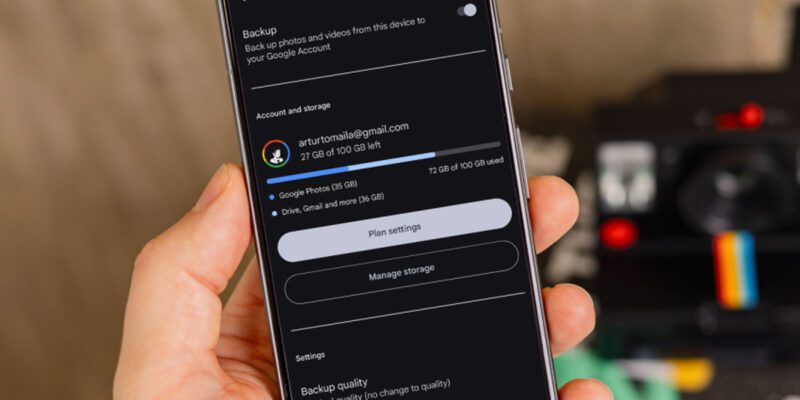
Go to Settings > Accounts and Backup > Backup Data (or Google Backup > Back Up Now on stock Android). Enable Backup by Google One and select Back Up Now. This backs up app data, call history, device settings, contacts, and calendars to your Google account. It’s automatic once enabled and serves as the baseline for restoring a new phone with your account.
Google Photos: Automatic Photo Backup
Open Google Photos > tap your profile picture > Photos Settings > Backup. Enable Backup and choose your upload quality. Choose Original Quality for complete fidelity (uses Google storage) or Storage Saver for compressed but visually identical photos (free, doesn’t count against storage). Set to back up over Wi-Fi and mobile data if you want immediate backup. Verify backup status — a green checkmark on the profile picture means everything is backed up.
Samsung Backup: Smart Switch for Galaxy Users
Samsung’s Smart Switch (Settings > Accounts and Backup > Backup Data on Samsung) backs up everything Google doesn’t — Samsung-specific settings, themes, and app data for some Samsung apps. Also install Smart Switch on a computer and perform a full phone-to-PC backup periodically. This local backup captures the most complete snapshot of your phone’s state, including things cloud backup misses.
WhatsApp Backup: Handle Separately
WhatsApp doesn’t back up through Google’s standard system. Open WhatsApp > Settings > Chats > Chat Backup > Back Up Now. Enable daily automatic backup to Google Drive. Check the backup size and last backup timestamp monthly to verify it’s working. For end-to-end encrypted backup, enable it with a strong password you’ll remember — this is the most important setting for anyone who has years of important WhatsApp history.
SMS Messages
SMS messages are backed up by Google if you use the Google Messages app. For third-party SMS apps, install SMS Backup & Restore from the Play Store, which backs up SMS and MMS to Google Drive or local storage. Run a manual backup and set up automatic scheduled backups. Standard SMS messages are increasingly rare but still used for bank verification codes and some services, so worth preserving.
Local Files and Documents
Check your phone’s Downloads folder, Documents folder, and any app-specific storage for files that aren’t automatically backed up. Connect your phone to a computer via USB and copy these manually to your hard drive, or install a cloud storage app (Dropbox, OneDrive, or Google Drive) and move important files there for automatic cloud backup.
Test Your Backup Regularly
A backup you’ve never tested is a backup you can’t trust. Verify your Google Backup is complete under Settings > Accounts and Backup. Check that Google Photos shows all photos as backed up. Verify your WhatsApp backup shows a recent timestamp. Once a year, go through the full restoration steps mentally — or actually restore to a secondary device if you have one — to confirm you know what the process involves and that everything is actually there.
Views: 48

You may also like

How to Stop Your Kids From Spending Money on Your Phone by Accident

How to Use Your Phone to Manage Your Time When You Work From Home
How to Use Your Phone Camera to Spot Things You’d Otherwise Miss
More in:Gadgets

How to Use Your Phone to Build Better Habits That Actually Stick

How to Use Your Phone to Help You Through a Difficult Life Transition

How to Use Your Phone to Manage Your Mental Load and Stop Forgetting Things

TecRounder is a blog that shares New Technology news from around the world (hence the name TecRounder), including the most recent mobile and gadget information: smartphone features, specifications, and more. You can find the latest technology updates here, including the most recent information on smartphones, laptop computers, and other electronic devices.