How to Use the Google Pixel Camera to Its Full Potential
 By
By Google Pixel cameras produce some of the best photos of any smartphone, largely through computational photography that happens after you tap the shutter. But knowing which features to use in which situations dramatically improves results beyond what auto mode delivers. Here’s a complete guide.
Understand Why Pixel Photos Look the Way They Do
Pixel cameras use HDR+ processing that takes multiple exposures and combines them into a single optimized image. This is why Pixel photos handle bright windows and dark interiors simultaneously. It’s also why Pixel photos look slightly different from Samsung’s more saturated, sharpened output — they prioritize natural rendering over punchy in-phone viewing. Understanding this helps you choose when Pixel’s output style suits your subject.
Night Sight: The Best Low-Light Camera on Any Phone
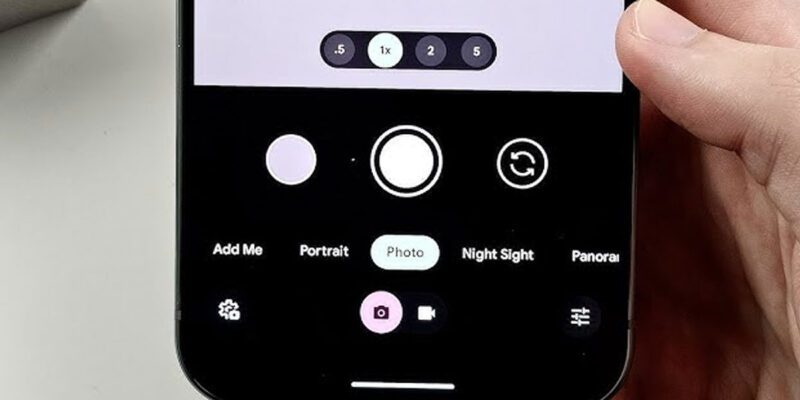
Swipe to Night Sight mode for any shot in low light. Night Sight uses extended exposure combined with AI noise reduction to produce photos in near-darkness that look like they were taken with adequate lighting. For best results: hold the phone very still or use a flat surface. Avoid subjects that are moving. Night Sight has a noticeable processing lag — the picture appears gradually. Wait for it to complete before moving the camera.
Astrophotography Mode
When using Night Sight on very dark scenes (starry sky, dark landscape), Astrophotography Mode activates automatically if the camera detects minimal movement over several seconds. Prop the phone against something stable and let it take a long exposure of the night sky. The resulting astrophotos — including the Milky Way in optimal conditions — are genuinely remarkable for a smartphone.
Magic Eraser for Removing Unwanted Elements
In the Google Photos editing screen, tap Tools > Magic Eraser. It automatically suggests objects to remove (tourist photobombs, signage, litter). Tap suggestions to accept or manually circle anything you want removed. For small, uniformly-backgrounded objects the results are excellent. For large or complex objects, results vary — it’s worth trying but won’t always produce a clean result.
Pro Mode and Pro Video
Pixel’s Pro mode (on Pro models) gives you manual control over ISO, shutter speed, and white balance. For video, Pro Video mode allows manual video settings including log footage on newer Pixel Pro models — useful if you process video professionally. For everyday photography, auto mode is hard to beat on Pixel, but Pro mode is invaluable for specific situations like waterfalls (slow shutter), sports (fast shutter), or controlled studio lighting.
Photo Unblur and Portrait Blur Enhancement
Photo Unblur (in Google Photos editing > Tools) uses AI to sharpen blurry photos — often recovering significantly from motion blur or camera shake. Portrait Blur lets you add or adjust background blur on portraits after capture, not just at the time of shooting. These post-processing tools are some of Pixel’s best features and apply to photos from any camera, not just Pixel-taken shots.
Video Stabilization on Pixel
Pixel’s video stabilization is among the best on Android. Standard stabilization handles normal handheld movement. Locked stabilization (available on Pixel 7 and later) locks the frame more aggressively for walking shots, cropping slightly for a dramatically smoother result. For video shot while walking, talking, or on public transport, Locked stabilization makes footage usable that would otherwise be unwatchable.
Views: 31

You may also like

How to Handle Phone Anxiety and the Constant Pressure to Be Available
How to Use Your Phone to Plan and Track Your Garden or Allotment

How to Stop Your Kids From Spending Money on Your Phone by Accident
More in:Gadgets

How to Use Your Phone to Manage Your Time When You Work From Home
How to Use Your Phone Camera to Spot Things You’d Otherwise Miss

How to Use Your Phone to Build Better Habits That Actually Stick

TecRounder is a blog that shares New Technology news from around the world (hence the name TecRounder), including the most recent mobile and gadget information: smartphone features, specifications, and more. You can find the latest technology updates here, including the most recent information on smartphones, laptop computers, and other electronic devices.