How to Get More Out of Your Android’s Voice Typing and Dictation
 By
By Voice typing on Android has improved dramatically and is now accurate enough for practical daily use. Most people try it once with poor results and never use it again. The problem is usually setup and technique, not the technology itself. Here’s how to use it effectively.
Enable and Configure Google Voice Typing
Go to Settings > General Management > Keyboard List and Default. Make sure Google Voice Typing is included. In its settings, enable Faster Voice Typing (offline speech recognition for lower latency) and Auto-Punctuation. Download the offline speech recognition model for your language — this allows voice typing without an internet connection and with lower latency.
Voice Typing Technique That Actually Works
Speak naturally at a normal pace — not slowly and not in a robotic cadence. The AI handles natural speech better than stilted pronunciation. For punctuation, say the punctuation marks: ‘period,’ ‘comma,’ ‘question mark,’ ‘new paragraph.’ Say ‘new line’ for a line break within a paragraph. Once you learn these commands, dictation is significantly faster than typing for most text input.
Use Voice Typing for Longer Texts
Voice typing excels for longer content where keyboard typing is genuinely slow: long email replies, extended WhatsApp messages, taking notes, drafting documents. For single-word searches or short responses, typing is often faster. The sweet spot is 50+ words where voice typing is two to four times faster than the keyboard.
Gboard’s Voice Typing Features
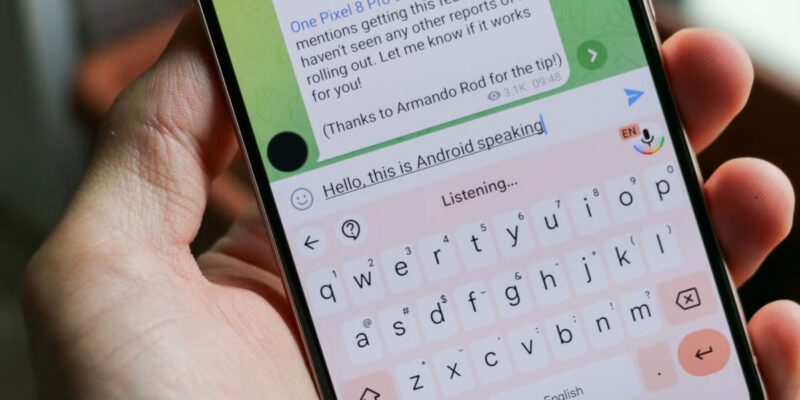
If you use Google’s Gboard keyboard, tap the microphone icon in the keyboard toolbar for voice input integrated with the keyboard. Gboard voice typing handles auto-correction, capitalization, and basic punctuation automatically. It’s slightly different from the full Google Voice Typing mode but more convenient for quick voice input within a typing session.
Voice Commands in Google Assistant
Beyond dictation, Google Assistant handles voice commands for specific tasks: ‘Send a WhatsApp message to [contact] saying [message],’ ‘Reply to the last email saying I’ll call tomorrow,’ ‘Set a reminder to take medication at 8pm.’ These command-based interactions are different from dictation — you’re giving instructions rather than dictating text — and they’re often faster for specific actions.
Voice Note Apps for Capture
For capturing ideas quickly without worrying about structure, dedicated voice note apps (Google Keep voice notes, Just Press Record, or Otter.ai which transcribes as you speak) are useful. Otter.ai in particular provides live transcription of anything you say with speaker identification, making it excellent for meeting notes or any situation where you want both audio and text.
Accessibility and Hands-Free Scenarios
Voice typing is essential in genuinely hands-free situations: while cooking, exercising, driving (though use assistant commands rather than screen-based dictation while driving), or for users with conditions that make typing difficult or painful. Setting up voice typing properly means it’s available reliably when these situations arise rather than requiring setup under pressure.
Views: 41

You may also like
How to Use Your Phone to Learn Basic First Aid You Might Actually Need

How to Use Your Phone to Create a Morning Routine That Actually Works

How to Handle Phone Anxiety and the Constant Pressure to Be Available
More in:Gadgets

How to Use Your Phone to Plan and Track Your Garden or Allotment

How to Stop Your Kids From Spending Money on Your Phone by Accident

How to Use Your Phone to Manage Your Time When You Work From Home

TecRounder is a blog that shares New Technology news from around the world (hence the name TecRounder), including the most recent mobile and gadget information: smartphone features, specifications, and more. You can find the latest technology updates here, including the most recent information on smartphones, laptop computers, and other electronic devices.