Why Your Android Phone Is Slow and Exactly How to Fix It
 By
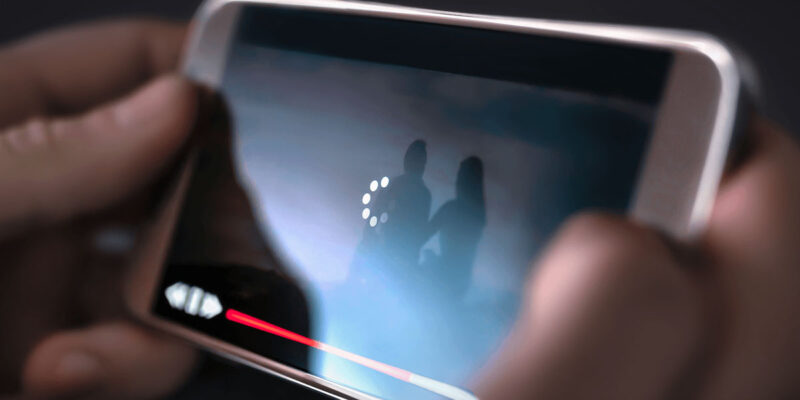
By A slow Android phone is one of those things that creeps up on you. It starts with a slight hesitation when opening apps. Then scrolling gets choppy. Then you’re waiting three seconds for your keyboard to appear. By that point, using your phone starts to feel like a chore.
The good news is that in most cases, slowness isn’t a hardware problem — it’s a software one. And software problems are fixable. Here’s a honest rundown of what’s actually causing it and what you can do about it.
Too Many Apps Running in the Background
Android doesn’t always clean up after itself. Apps that you opened once and forgot about can still be silently running background services, syncing data, or waiting for push notifications. Go to Settings > Apps and look at what’s installed. If you haven’t used something in three months, either restrict its background activity or uninstall it entirely. Fewer active processes means more RAM and CPU for the things you actually care about.
Your Internal Storage Is Almost Full
This one trips up a lot of people. When your phone’s storage gets above roughly 80% full, performance can degrade noticeably. The operating system needs free space to write temporary files, cache app data, and manage virtual memory. Check Settings > Storage and see where you stand. Photos are usually the biggest culprit. Back them up to Google Photos and free them from local storage.
Outdated System Software
Running an old version of Android isn’t just a security risk — it can cause performance issues. Manufacturers regularly push optimizations and bug fixes through system updates. Go to Settings > Software Update and install anything pending. Yes, updates sometimes cause their own issues, but in most cases you’re better off running the latest version.
Animations Are Slowing Down Your Perception of Speed
This is a quick win that feels almost magical. Go to Settings > About Phone and tap Build Number seven times to unlock Developer Options. Then go to Developer Options and find Window Animation Scale, Transition Animation Scale, and Animator Duration Scale. Set all three to 0.5x or turn them off entirely. Your phone will feel dramatically faster because the visual transitions that previously stretched over half a second now happen almost instantly.
A Misbehaving App Is the Real Culprit
Sometimes one app is responsible for everything — draining battery, hogging RAM, causing the whole system to crawl. Facebook, TikTok, and some banking apps are common offenders. Go to Settings > Battery > Battery Usage and Settings > Memory to see what’s actually consuming resources. If one app is way ahead of the others, try clearing its cache first. If that doesn’t help, reinstall it or switch to the browser version.
Your Cache Needs Clearing
Over time, apps accumulate cached data that can become corrupted or bloated. For individual apps, go to Settings > Apps > [App Name] > Storage > Clear Cache. For a more thorough fix, some Android phones still allow you to wipe the system cache partition from recovery mode — check your specific phone model for instructions. This often resolves mysterious slowness that nothing else fixes.
The Phone Is Genuinely Old
If your phone is four or more years old, some slowness is just reality. Newer apps are built for newer hardware. That said, even older phones can be made significantly more usable by following the steps above, keeping fewer apps installed, and possibly flashing a lighter ROM if you’re technically inclined. But if the phone is truly struggling, it might be time for an upgrade.
Quick Summary
Start with the easy wins: reduce animations, clear app caches, free up storage space, and check for system updates. If none of that helps, dig into which specific apps are consuming resources. In most cases, you can get a meaningful improvement without a factory reset.
Views: 105

You may also like
Why Your Android Phone Charges So Slowly and What Actually Fixes It

How to Use Your Phone to Learn About Nutrition Without Getting Confused
How to Use Your Phone to Document and Share Your Creative Work
More in:Gadgets

How to Use Your Phone to Prepare for a Job Interview

How to Use Your Phone to Manage Your Pet’s Health Records and Vet Visits

How to Use Your Phone to Deal With Information Overload

TecRounder is a blog that shares New Technology news from around the world (hence the name TecRounder), including the most recent mobile and gadget information: smartphone features, specifications, and more. You can find the latest technology updates here, including the most recent information on smartphones, laptop computers, and other electronic devices.