How to Back Up Your Phone Contacts So You Never Lose Them Again
 By
By Losing your contacts is one of those phone disasters that feels minor until it happens to you. Suddenly you realize your entire social and professional network is gone — numbers you’ve accumulated over years, people you can’t easily reconnect with because you don’t know their numbers. A client you’ve worked with for three years. A doctor’s office you can’t find online. Your landlord.
The fix is simple and takes about two minutes once. Here’s how to do it.
The Right Way to Understand Contact Backup
Most people think their contacts are stored in the phone itself. They’re partly right, but it depends on where the contacts were originally saved. Contacts can be stored in the phone’s local memory, on the SIM card, or synced to a cloud account. Only the cloud-synced contacts back up automatically. Local contacts and SIM contacts require deliberate action.
This is the source of most contact loss — people have contacts saved locally or on the SIM, the phone breaks, and they discover too late that those contacts weren’t going anywhere.
Syncing Contacts to Google (Android)
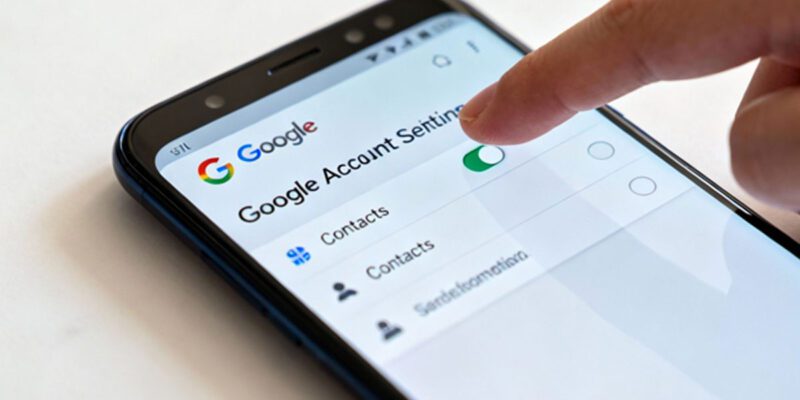
Go to Settings > Accounts > Google. Tap your account and make sure “Contacts” is toggled on in the sync settings. Once syncing is enabled, all contacts stored in your Google account will sync automatically in both directions — changes on the phone update in Google, and changes in Google update on the phone.
After enabling this, go to your Contacts app and check which account each contact is stored under. Contacts stored under “Phone” or “SIM” won’t sync. Select all those contacts, tap the menu, and choose “Move to” your Google account. Now they’re all in one place and backed up.
You can verify this worked by going to contacts.google.com on a computer and confirming your contacts are there.
Syncing Contacts to iCloud (iPhone)
Go to Settings > [Your Name] > iCloud and toggle on Contacts. If prompted about merging, choose to merge. Your contacts will sync to iCloud immediately.
On a computer, you can verify at icloud.com > Contacts.
The iCloud approach is clean and automatic. As long as iCloud is syncing and you have storage available, your contacts are continuously backed up.
Exporting Contacts as a VCF File
For an additional backup that lives outside the cloud, export your contacts as a VCF file. This is a standard format that any phone or contact app can import.
On Android: Open Contacts app > Menu > Manage Contacts > Export > Save to Internal Storage. This creates a .vcf file you can copy to your computer or upload to cloud storage.
On iPhone: You can’t export contacts directly, but you can use iCloud.com on a computer. Go to contacts.google.com (or icloud.com/contacts), select all contacts, click Export, and download the VCF file.
Keep this file somewhere safe — email it to yourself, put it in Dropbox, save it on your computer. If you ever need to import contacts to a new phone or app, this file does it in one step.
SIM Card Contacts: The Old Way
SIM cards hold contacts from the feature phone era. The limit is usually 250 contacts, each with one phone number and no additional fields. If you have contacts saved on your SIM, import them to your Google or Apple account: Contacts app > Import > Import from SIM. Do this once and then stop saving contacts to SIM going forward.
What to Do Right Now
Take two minutes today and make sure contacts are syncing to an account. Log into contacts.google.com or icloud.com/contacts on a computer and verify your contacts are there. Count them — if the number roughly matches what’s on your phone, you’re good. If the number is wildly different or zero, something is wrong with your sync setup and you need to investigate before something happens to your phone.
The cost of doing this is two minutes. The cost of not doing it is potentially losing every contact you have.
Views: 53

You may also like

How to Stop Your Kids From Spending Money on Your Phone by Accident

How to Use Your Phone to Manage Your Time When You Work From Home
How to Use Your Phone Camera to Spot Things You’d Otherwise Miss
More in:Gadgets

How to Use Your Phone to Build Better Habits That Actually Stick

How to Use Your Phone to Help You Through a Difficult Life Transition

How to Use Your Phone to Manage Your Mental Load and Stop Forgetting Things

TecRounder is a blog that shares New Technology news from around the world (hence the name TecRounder), including the most recent mobile and gadget information: smartphone features, specifications, and more. You can find the latest technology updates here, including the most recent information on smartphones, laptop computers, and other electronic devices.