How to Speed Up File Downloads and Uploads on Android
 By
By Slow downloads on Android are often a network issue, but phone settings can also play a significant role. Here’s a systematic approach to speeding up both downloads and uploads on your Android device.
Enable Parallel Downloading in Chrome
If you download files through Chrome, enable parallel downloading (chrome://flags > search Parallel Downloading > Enable). This breaks large files into simultaneous chunks downloaded at once, significantly increasing speed for large file downloads on fast connections. This is a Chrome-specific fix that affects browser downloads only.
Switch Your DNS to a Faster Provider
Slow DNS resolution adds latency to every connection. Settings > Network > Advanced > Private DNS. Enter dns.google or 1dot1dot1dot1.cloudflare-dns.com. These DNS providers are faster than most carrier defaults and also offer privacy benefits. The improvement is most noticeable as faster page loading times and reduced latency on initial connections.
Check Background Data Consuming Your Bandwidth
While you’re downloading a large file, other apps may be simultaneously syncing, streaming, or updating. Settings > Network > Data Usage shows real-time network activity. During important downloads, temporarily put other apps in background data restriction mode. Giving the download exclusive bandwidth access can significantly speed it up.
Use Your 5G Connection Effectively
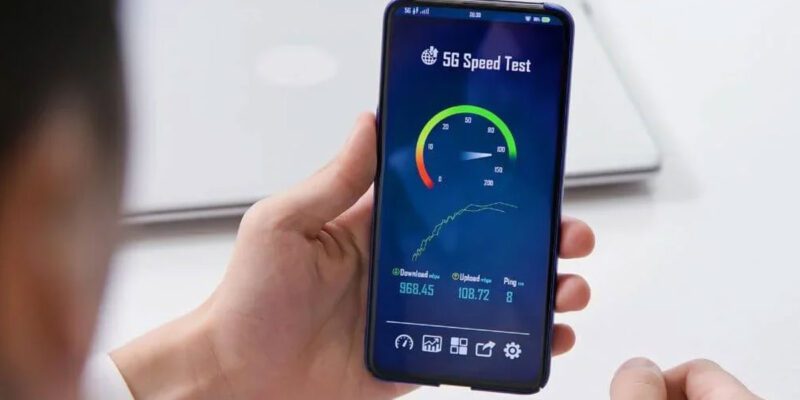
If you have a 5G-capable phone and carrier plan, verify Settings > Network > Mobile Networks > Network Type includes 5G NR. Some phones default to 4G for battery saving. 5G download speeds in good coverage areas can exceed your home broadband, making it faster to download on mobile data than Wi-Fi for very large files.
Optimize Your Wi-Fi Band
If your router broadcasts 2.4GHz and 5GHz bands, ensure your phone is connected to 5GHz when stationary and close to the router. The 5GHz band has higher speeds but shorter range. If you’re in the same room as your router, manually connect to the 5GHz SSID for maximum throughput. Check your current band in Settings > Wi-Fi > tap your network name.
Use a Download Manager App
For very large files (video files, large APKs, archives), dedicated download managers like Advanced Download Manager or IDM+ improve speeds by using parallel connections and resuming interrupted downloads without starting over. They also manage download queues better than browser downloads and show accurate speed and time remaining estimates.
For Uploads: Compression and Timing
Upload speeds are typically three to five times slower than download speeds on home broadband and mobile data. For large uploads (videos, backups, large documents), reduce file size where possible before uploading. Schedule large cloud backups for off-peak hours. Use compression before uploading archives. For video uploads to cloud storage or social platforms, use the platform’s native app which often uses more efficient upload protocols than browser uploads.
Views: 160

You may also like

How to Handle Phone Anxiety and the Constant Pressure to Be Available

How to Use Your Phone to Plan and Track Your Garden or Allotment

How to Stop Your Kids From Spending Money on Your Phone by Accident
More in:Gadgets

How to Use Your Phone to Manage Your Time When You Work From Home

How to Use Your Phone Camera to Spot Things You’d Otherwise Miss

How to Use Your Phone to Build Better Habits That Actually Stick

TecRounder is a blog that shares New Technology news from around the world (hence the name TecRounder), including the most recent mobile and gadget information: smartphone features, specifications, and more. You can find the latest technology updates here, including the most recent information on smartphones, laptop computers, and other electronic devices.