How to Fix Android Phone Calls With No Sound or Low Volume
 By
By You answer a call and can barely hear the other person, or they can’t hear you at all. Call audio problems are distinct from general audio issues and have specific causes. Here’s how to diagnose and fix call sound problems on Android.
Check the Volume During a Call
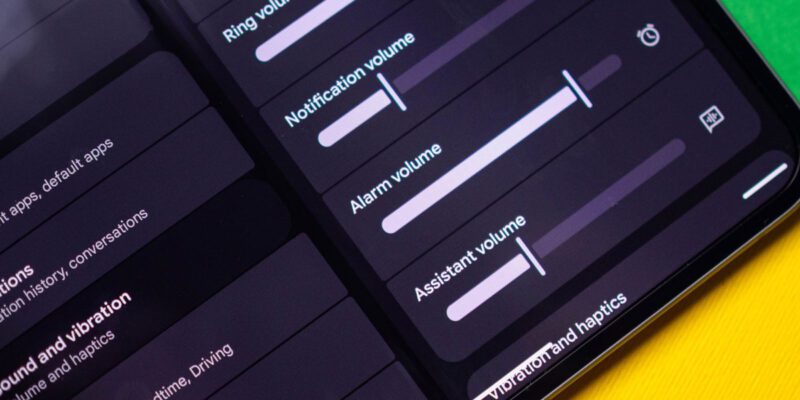
This sounds basic but it’s frequently the actual problem. Call volume is a separate volume channel from media volume. During an active call, pressing the volume up button increases call volume specifically — doing this outside a call adjusts media volume, not call volume. Make a test call and press volume up repeatedly while the call is active to verify the call volume is at maximum.
Clean the Earpiece Speaker
The earpiece (the small speaker at the top of the phone you hold to your ear) accumulates dust, lint, and skin oils that block sound. Use a dry, clean toothbrush or a small piece of tape to gently clean the earpiece grille. Muffled or unexpectedly quiet call audio is very often a physical blockage rather than a software issue.
Disable Noise Cancellation
Android phones have noise cancellation features designed to reduce background sound for the other person. These sometimes over-filter and make the caller’s voice sound distant or muffled to you. Settings > Sounds > Advanced Sound Settings > find Noise Cancellation or Reduce Background Noise and toggle it off. Test call quality without it enabled.
Check for Case or Screen Protector Interference
A poorly fitted case or an over-sized screen protector can partially block the earpiece or proximity sensor. Remove your case and test a call directly. If call audio is normal without the case, the case is the problem. Try repositioning the screen protector if it extends above the earpiece cutout.
Reset Call Settings
Open the Phone app > three dots > Settings > Calls or Call Settings. Look for options related to audio, noise reduction, and call enhancement. Reset any settings you’ve previously changed to defaults. On Samsung phones, look for Enhanced Voice Clarity or Clear Voice under call settings and try toggling these.
Test With a Different Calling App
Make a call using WhatsApp, Google Meet, or another VOIP app and see if audio quality differs. If audio is fine through alternative apps but not through the standard phone app, the issue is specific to the cellular call path. If audio problems persist in all call apps, it’s a hardware or low-level software issue.
Microphone Problems: When They Can’t Hear You
If the other person reports that they can’t hear you, the issue is your microphone rather than your speaker. Check that no app has the microphone in exclusive use (Settings > Privacy > Microphone). Physically inspect the microphone holes at the bottom of the phone for blockage. Test by recording a voice memo — if that’s also silent or quiet, the microphone hardware needs assessment at a service center.
Views: 155

You may also like
How to Use Your Phone to Learn Basic First Aid You Might Actually Need

How to Use Your Phone to Create a Morning Routine That Actually Works

How to Handle Phone Anxiety and the Constant Pressure to Be Available
More in:Gadgets
How to Use Your Phone to Plan and Track Your Garden or Allotment

How to Stop Your Kids From Spending Money on Your Phone by Accident

How to Use Your Phone to Manage Your Time When You Work From Home

TecRounder is a blog that shares New Technology news from around the world (hence the name TecRounder), including the most recent mobile and gadget information: smartphone features, specifications, and more. You can find the latest technology updates here, including the most recent information on smartphones, laptop computers, and other electronic devices.