 By
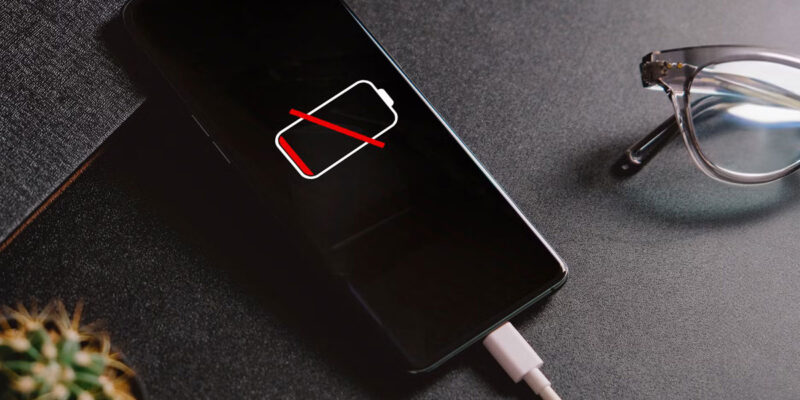
By Your Android isn’t charging. Or it’s charging embarrassingly slowly. Or it charges for a while and then stops. This is maddening because your phone is useless without power and nothing you try seems to make a difference.
The causes range from completely trivial (a dirty port) to moderately serious (a damaged battery). Let’s work through them systematically.
Start Here: Clean the Charging Port
Lint and debris in the USB-C or Micro-USB port is the number one cause of charging problems and the most commonly overlooked. Look in the port with a flashlight — you’ll often see a visible plug of pocket lint. Use a wooden or plastic toothpick (never metal) to very gently remove it. Do not blow compressed air into the port — it can push debris deeper or damage components.
Test With a Different Cable and Charger
Cables fail constantly, especially braided ones that look fine externally but have broken internal wires. Try a different USB cable, ideally one you know works. Also try a different wall adapter. If charging suddenly works, you’ve found your problem. Always use cables and chargers that are certified for your phone — cheap unbranded chargers can cause slow charging, overheating, and battery damage.
Restart Your Phone While Plugged In
A software glitch can occasionally prevent the phone from registering a charging connection properly. Restart the phone while it’s plugged into a working charger. In many cases, the charging animation appears properly after a restart when it wasn’t showing before.
Check Battery Health Under Developer Options
Go to Settings > About Phone > Battery Information if your phone has it, or enable Developer Options and check battery status there. Some Samsung phones also show battery health in Settings > Device Care > Battery > Battery Status. If your battery health is below 80%, slow charging and inconsistent behavior become common. At that point, battery replacement is the fix.
Disable Fast Charging If Your Phone Is Overheating
If your phone charges but gets extremely hot, go to Settings > Battery > Charging Settings and turn off Fast Charging. This causes slower charging but prevents the heat-related degradation that fast charging can cause in hot environments. High charging temperatures degrade battery capacity over time.
Check for Apps Keeping the CPU Active During Charging
If an app is running at high CPU usage while you’re trying to charge, it can make charging very slow or cause the phone to lose charge even while plugged in. Check Settings > Battery > Battery Usage and close any unusually active apps before charging.
Reset Battery Statistics (For Percentage Calibration Issues)
If your phone shows incorrect battery percentage — jumping from 40% to 5% suddenly or claiming it’s fully charged when it clearly isn’t — the battery statistics may need recalibration. Discharge the phone completely until it shuts off, then charge uninterrupted to 100% without using it. Repeat once or twice. This re-syncs the reported percentage with the actual battery capacity.
When to Consider Battery Replacement
If your phone is two or more years old and has been charged daily, battery degradation is a serious possibility. Third-party battery replacement services are available in most cities and typically cost between $30 and $80 depending on the model. It’s often worth doing rather than buying a new phone — a fresh battery can make an older phone feel like new.
Views: 105

You may also like

How to Use Your Phone to Manage Your Mental Load and Stop Forgetting Things

How to Use Your Phone to Reduce Your Environmental Impact

How to Use Your Phone to Make Better Decisions
More in:Apps

How to Use Your Phone to Manage Your Children’s Screen Time Without Constant Conflict

How to Use Your Phone to Find a Therapist or Mental Health Support

How to Keep Kids Safe Online When They’re Using Your Phone

TecRounder is a blog that shares New Technology news from around the world (hence the name TecRounder), including the most recent mobile and gadget information: smartphone features, specifications, and more. You can find the latest technology updates here, including the most recent information on smartphones, laptop computers, and other electronic devices.