 By
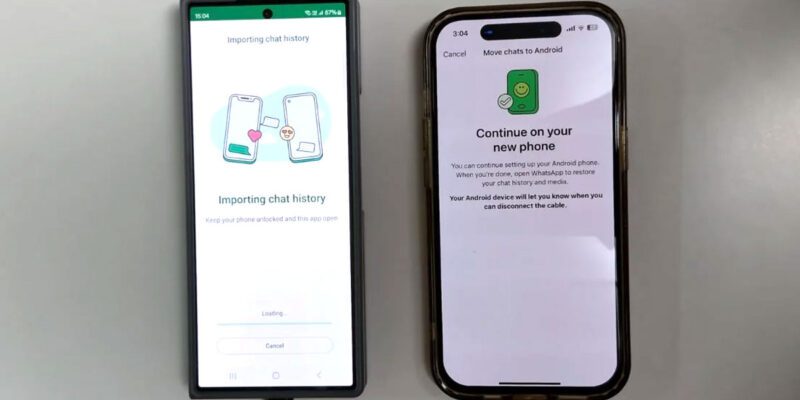
By Switching from Android to iPhone — or vice versa — is straightforward for most data. WhatsApp is the painful exception. Google Drive backups can’t be restored on iPhone, and iCloud backups can’t be restored on Android. But WhatsApp has built a native solution that actually works. Here’s how to do it properly.
The Official WhatsApp Method: Move to iOS
This is the official WhatsApp-supported method for Android to iPhone migration. Download the Move to iOS app on your Android (available on the Play Store). During iPhone setup, select Move Data from Android. On your Android, open Move to iOS and follow the steps — it transfers your WhatsApp messages, photos, videos, and voice messages. This must be done during the initial iPhone setup, before the iPhone is fully configured.
Requirements for the Official Method
Both phones must be on the same Wi-Fi network, or the iPhone creates a temporary network that Android connects to. Your Android WhatsApp must be updated to the latest version. The iPhone must be running iOS 15.5 or later. The transfer creates a local archive of your WhatsApp data that restores during iPhone setup. WhatsApp must be the same phone number on both devices.
Samsung Smart Switch for Samsung to iPhone
Samsung Smart Switch also supports WhatsApp transfer from Galaxy phones to iPhone. Connect both devices via a USB-C to Lightning or USB-C to USB-C cable with an adapter, and Smart Switch handles the migration. For Galaxy users, this is often more reliable than the Move to iOS method because Smart Switch has deeper access to Samsung’s WhatsApp storage.
iPhone to Android: Using Move to Android
For moving from iPhone to Android, the Move to Android app (available in the App Store for iOS 12.1 and later) handles WhatsApp transfer. Open it on your iPhone during the Android setup process. It creates a local transfer of your WhatsApp data. The Android phone must be in setup mode — not already configured — for this to work.
What Gets Transferred and What Doesn’t
Personal chats, group chats, and media (photos, videos, voice messages, documents) all transfer successfully. Call history, business accounts, and payment history typically do not transfer. Starred messages transfer but may need to be re-starred on the new device. The chat history is complete up to the point of transfer.
Back Up Everything Before Starting
Before beginning any transfer, make sure WhatsApp is fully backed up on your old phone. On Android: WhatsApp > Settings > Chats > Chat Backup > Back Up Now. Confirm the backup completed successfully and shows a recent timestamp. This gives you a fallback if anything goes wrong during the transfer process.
After Transfer: What to Check
Once WhatsApp is running on your new iPhone or Android, verify that recent conversations are present, that media is loading correctly, and that group chats are intact. Check your Starred Messages and important individual chats. If anything is missing, you may be able to restore from the backup you made before starting, though this is a more involved process.
Views: 0

You may also like
Samsung Galaxy Camera Tips: Get Better Photos Without a Photography Course

How to Use AI to Write a Business Plan That Actually Makes Sense
How to Get the Most Out of Android Widgets in 2026
More in:Apps

How to Use AI for Fitness: Build Better Workouts, Track Progress, Stay Consistent
How to Find and Remove Spy Apps From Your Android Phone
How to Use Your Android as a Productivity Machine When Working From Home

TecRounder is a blog that shares New Technology news from around the world (hence the name TecRounder), including the most recent mobile and gadget information: smartphone features, specifications, and more. You can find the latest technology updates here, including the most recent information on smartphones, laptop computers, and other electronic devices.