 By
By Here’s why!
Many of us tend to download every program that attracts our attention without thinking twice. When using an Android device, you frequently download these apps from the Google Play Store, which is usually safe because Google carefully reviews each app to make sure it satisfies its security requirements before listing it. Instead, you might sideload an app.
Installing an app on your Android device from a source other than the official Google Play Store is known as sideloading. You may do this for a variety of reasons, such as when an app isn’t accessible in your area. Strangely, the Kindle app wasn’t available locally when I tried to install it on my Android device recently. Although I opted for a different method, sideloading was the only way to obtain the Kindle software directly. Sideloading is riskier than installing an app from the Play Store because Google hasn’t reviewed the apps and they may contain viruses, malware, or other security flaws.
Fortunately, Play Protect, a feature in Google Play, is there to help keep your device safe even when you download apps from other sources. Although Play Protect ought to be activated by default, it’s a good idea to double-check to be sure you didn’t unintentionally disable it. Although you can turn off Play Protect if you’d like (unless you have Advanced Protection turned on), it’s strongly advised to keep it turned on to keep your apps and device safe from potentially dangerous software.
How Play Protect works (and how to turn it on)
Play Store Protect
A Google support page claims that the Play Protect feature scans your devices and apps for malicious activity. Play Protect checks your device for potentially dangerous apps from other sources, such as sideloaded apps, and performs a safety check on the app you’re installing when you install one from the Google Play Store. Malware is another term for these malicious programs, and Play Protect will alert you if it detects anything suspicious.
However, the tool does more than merely alert you to a questionable situation. Additionally, it can delete or disable the app from your device. Sometimes your device just won’t let you download an app, as you may have noticed. Play Protect is also doing its magic there. It scans your smartphone regularly and checks apps when you install them. If it finds a potentially dangerous app, it will either notify you to uninstall it, disable it until you take action, or remove the app itself (which is usually what occurs).
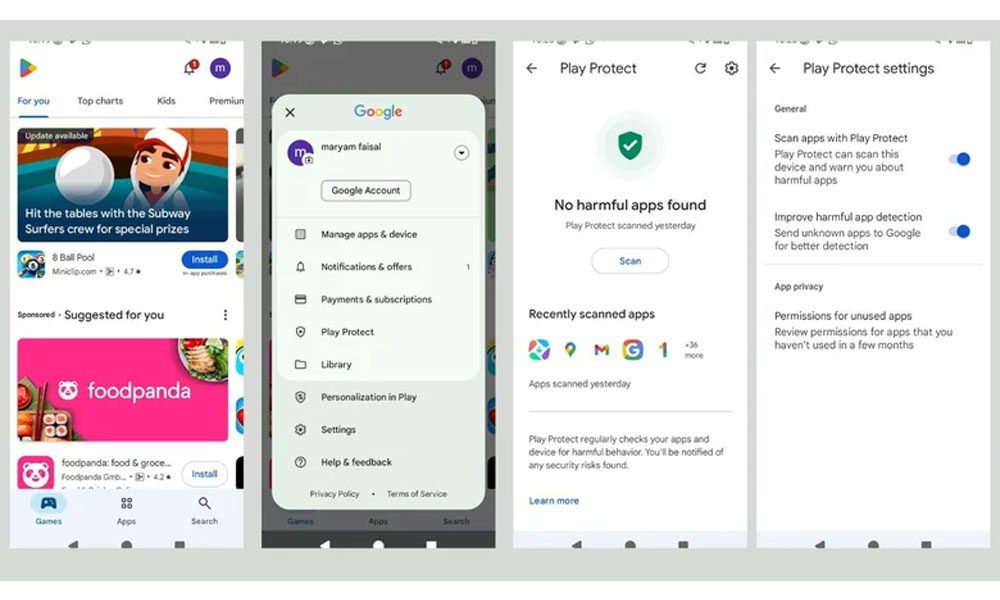
Go to the Play Store and tap the profile symbol in the upper-right corner of the screen to check if Play Protect is enabled. Next, press the settings gear icon in the upper-right area after selecting Play Protect. Verify that the “Scan apps with Play Protect” switch is turned on. Additionally, you’ll see a feature called “Improve harmful app detection” that enables Play Protect to send Google unknown apps you install outside of the Play Store automatically, without requesting your consent.
Views: 381

You may also like

Apple shifts its AI strategy to the App Store and a search-like platform approach.

Sony increases PS5 costs by up to $150, blaming ‘pressures’ in the global economy.

Apple announces AirPods Max 2
More in:Apps
10 Android trends that will shape smartphones in 2026
Android 17 Beta 2 begins clamping down on apps that exploit accessibility features
What indications suggest about a potential Windows 12

TecRounder is a blog that shares New Technology news from around the world (hence the name TecRounder), including the most recent mobile and gadget information: smartphone features, specifications, and more. You can find the latest technology updates here, including the most recent information on smartphones, laptop computers, and other electronic devices.