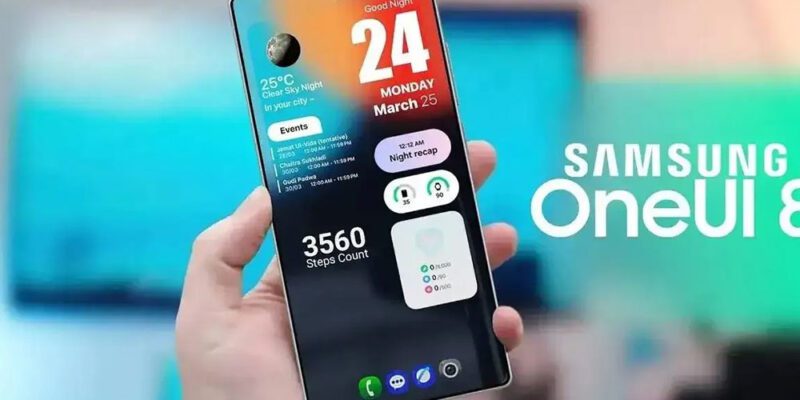
Useful built-in Samsung One UI apps you’re probably not using—but you should be.
 By TecRounder
When you first set up your Samsung Galaxy S25, you most likely accomplished two things.
You opened the pre-installed Samsung folder and felt a little overwhelmed. Second, you relegated it to the very back of your app drawer, believing that it was nothing more than unwanted bloatware taking up space.
You presumably purchased a Galaxy for its stunning screen and powerful hardware, not for software filler. However, with recent One UI revisions, Samsung has modified its native apps.
Here are seven One UI apps that you’re probably neglecting, but should be front and centre on your home screen.
Customise your Galaxy like a pro with Good Lock.
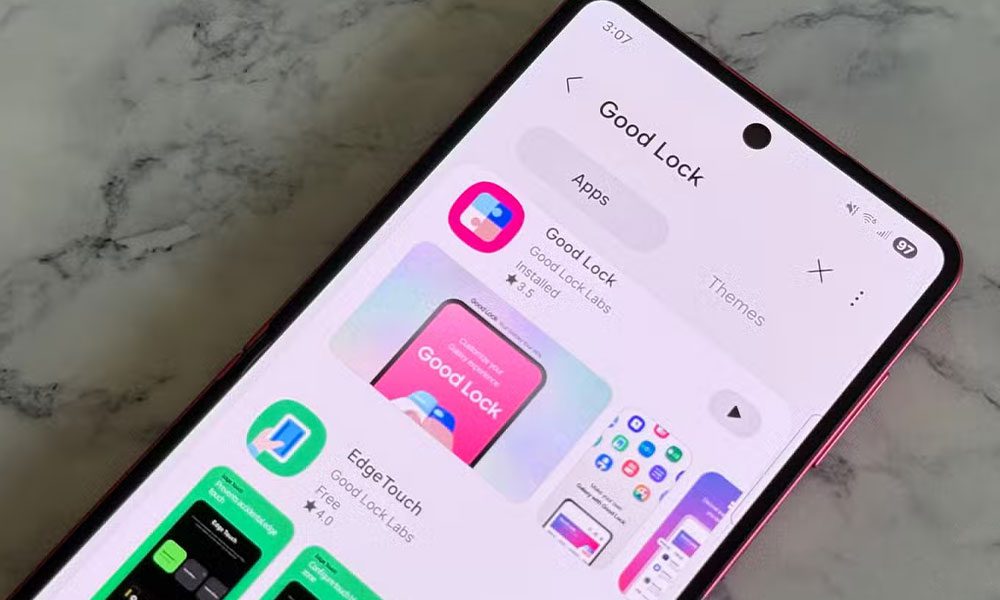
Most casual users overlook the Galaxy Store’s Good Lock app since it is a separate download that appears to be a complex third-party system mod. It appears complicated, like something only an aficionado would bother with.
In truth, Good Lock serves as Samsung’s officially sanctioned laboratory, providing modular access to features that are still too complex or experimental for the main settings menu.
Adopting these early-access utilities usually implies receiving formal benefits that regular Android users do not.
RegiStar is a fantastic example of a Good Lock feature that significantly alters how you interact with your device.
It lets you map a double or triple press on the back of your phone to instantly run system tasks like taking a screenshot, opening recent apps, or even launching your favourite third-party apps.
SoundAssistant is another useful module to try out. It provides you complete control over your phone’s audio settings. Multi-Sound Routing is undoubtedly SoundAssistant’s greatest feature. You can send audio to two Bluetooth devices simultaneously.
Furthermore, you get per-app volume control, which allows you to configure it so that music does not drown out navigation cues.
The Gaming Hub keeps your Galaxy cool as you play.
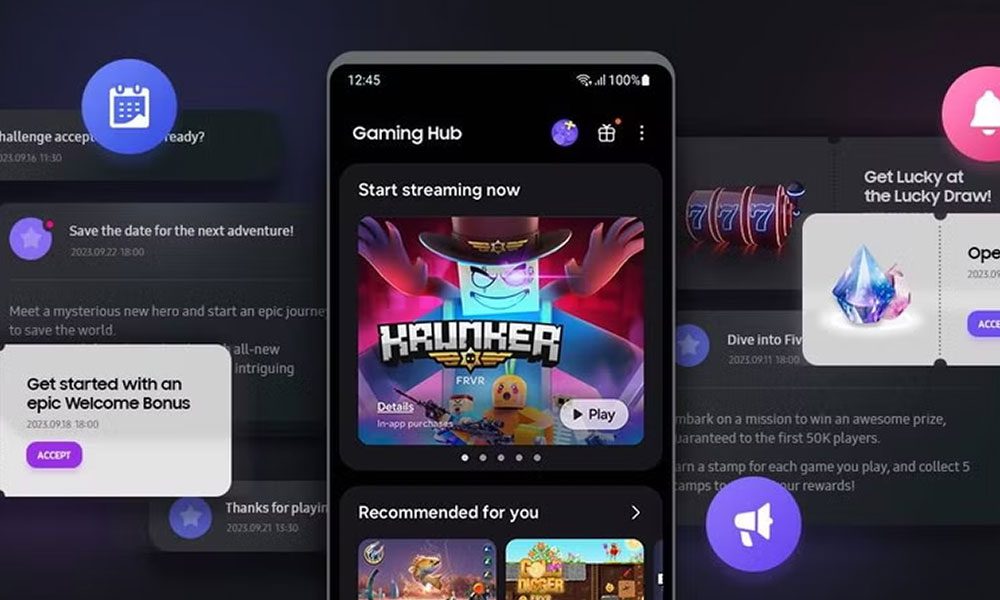
Casual users typically consider the Gaming Hub (previously Game Launcher) as just an irritating folder that organises their games or shows unwelcome adverts. But what they don’t realise is that it includes a feature that fundamentally changes how their phone handles power.
When you game while plugged in, the charger powers the battery, which then powers the phone, causing it to heat up and wear down.
The Pause USB Power Delivery setting enables the charger to skip the battery and power the processor immediately.
This prevents the battery from charging and overheating while you game, lowering your device’s temperature and helping protect the battery over time. It effectively transforms your phone into a cooler-running console that performs better during extended game sessions.
Edit videos like a pro with Samsung Studio.
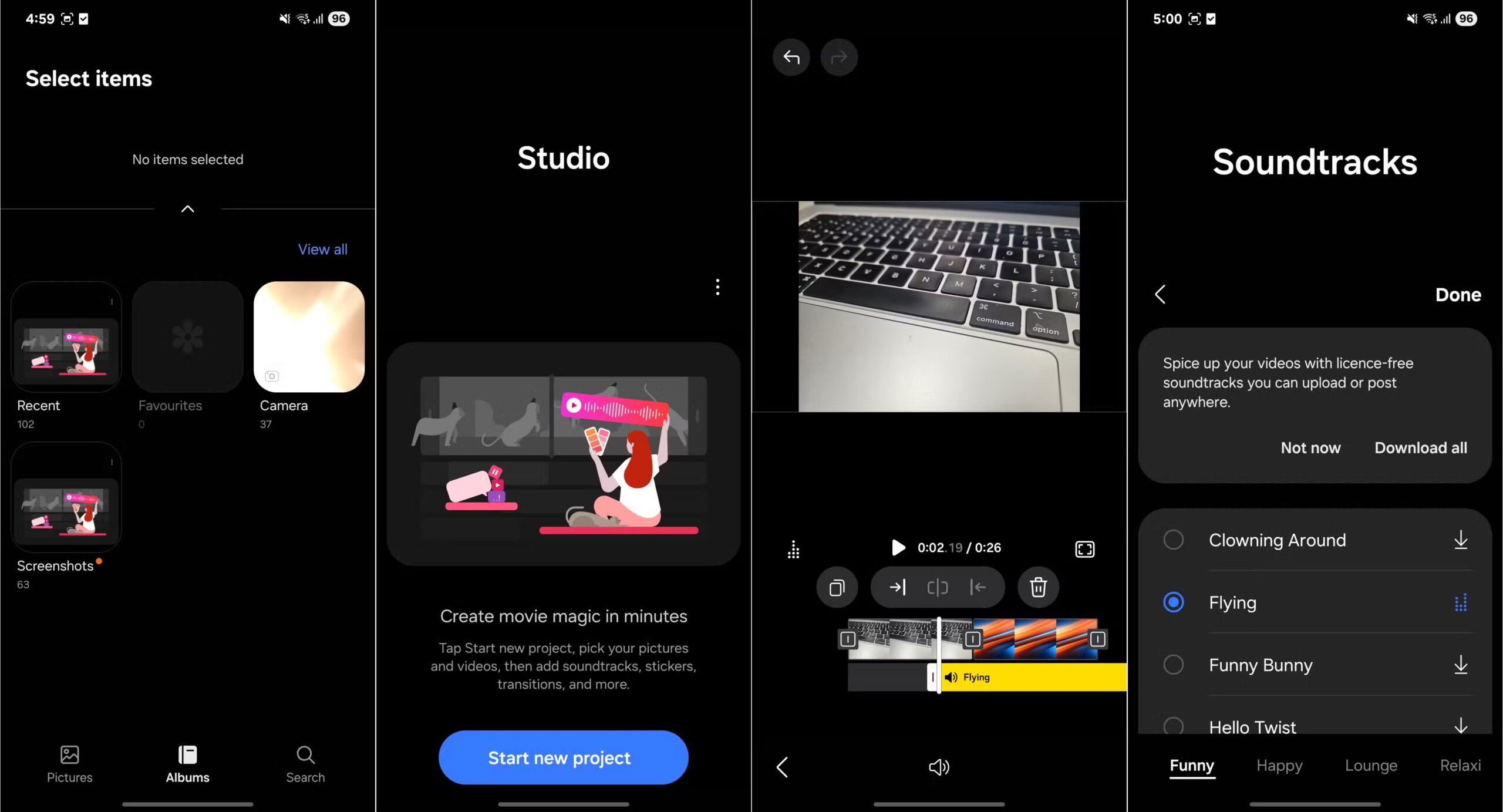
When consumers enter the Gallery and tap the edit icon on a video, they often assume it’s just basic clipping and cropping, so they download video editing programs. However, they miss out on Samsung’s Smart Studio feature.
Samsung Studio competes against third-party tools. It’s a project-based, multi-layer editing program with a comprehensive timeline editor that lets you manage multiple clips, text layers, stickers, and more.
This timeline arrangement gives you the ability to create sophisticated videos directly on your phone. By keeping Studio separate from the gallery trimmer, Samsung ensures that casual users aren’t overwhelmed while also providing producers with a sophisticated editor.
Studio is incorporated right into the phone, so you won’t have to deal with bothersome watermarks, limited free capabilities, or paywalls that many external editors have.
Use Samsung Members to check your phone’s health
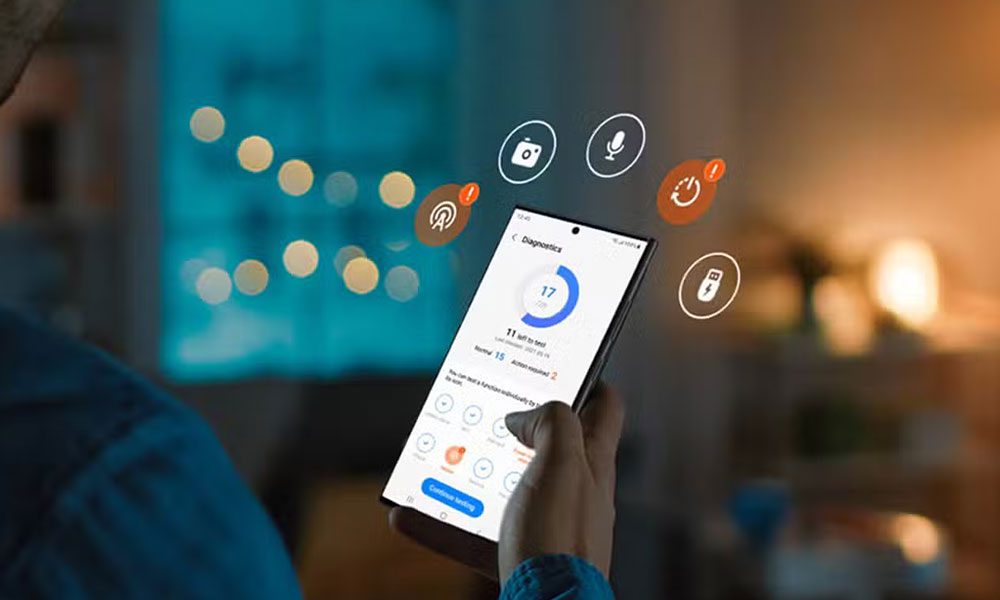
Many consumers dismiss the Samsung Members app as marketing noise, a help hub, or a perplexing forum.
However, this is a squandered opportunity because it allows you to save time and money by performing basic hardware checks yourself rather than relying on service centres.
The Built-in Hardware Diagnostics feature allows you to execute comprehensive, validated checks on important hardware such as the display, cameras, microphone, speakers, USB ports, and batteries.
It is ideal for lowering financial risk when purchasing or selling a used Galaxy device by providing a reliable health report. You can run all of the tests at once or pick and choose which elements to test separately.
Automate your Galaxy with Modes and Routines
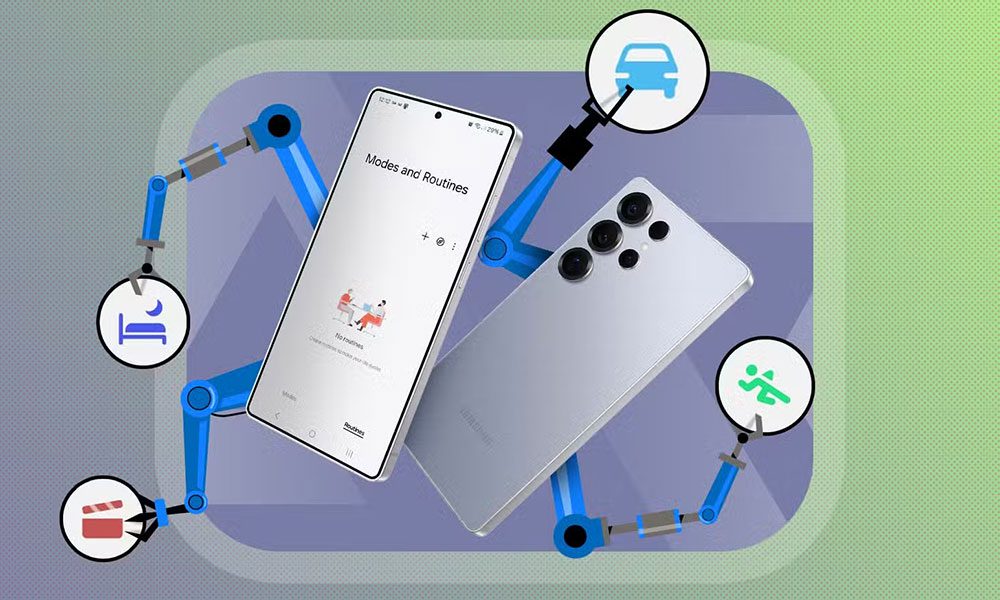
Users frequently find setting up Modes and Routines complex or believe it is a basic feature, so they continue to change settings manually. However, this is Samsung’s sophisticated built-in automation system, which substitutes third-party scripting applications.
This program automates deep system behaviour using intuitive If/Then logic in response to events like as app start, location, or device connection.
Because it is directly integrated, it is more stable than external automation solutions. You can do almost anything with it. Consider these simple yet powerful examples.
Auto-rotate fix for media
You can automate the typical task of manually switching the screen lock toggle while switching between video apps.
With this simple automation, once YouTube runs, your phone’s screen orientation changes to auto-rotate, and when you exit the app, the prior screen orientation settings are restored.
Automating Focus Mode.
You may save the everyday process of manually silencing your phone when you get to work by setting your phone to switch profiles automatically.
Samsung Internet provides a better mobile browsing experience than Chrome.

Most consumers leave the native browser right away for Google Chrome, thinking the pre-installed one is outdated.
They regard Chrome as the go-to for syncing and performance, and write off Samsung Internet as just an OEM copy. But that misses the point. In fact, Samsung’s browser is more optimised for mobile navigation than Chrome.
For example, whereas other browsers have you cope with tiny, cumbersome online player buttons, Samsung Internet spots web movies and adds its own native, gesture-based controls.
Plus, unlike mobile Chrome, Samsung Internet lets you utilise third-party extensions right out of the box.
It also comes with a Privacy Dashboard and anti-tracking, which aggressively eliminates tracking cookies that Chrome often misses.
And its Secret Mode is better than Chrome’s Incognito. It allows you to use biometric locks to secure your private tabs, so even if you give up your unlocked phone, your browsing will remain secret.
Samsung Flow beats Phone Link for Galaxy users
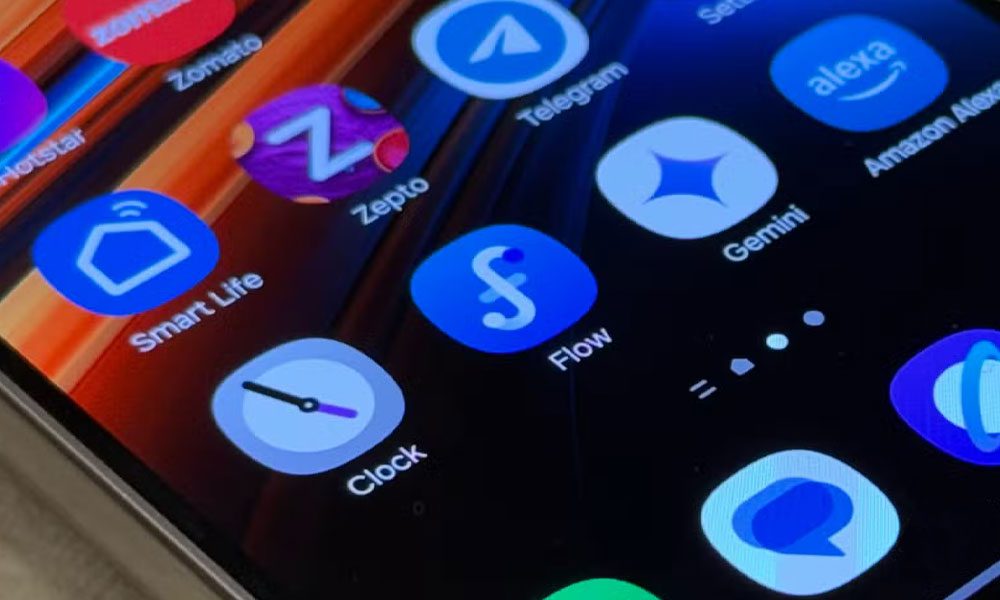
With Microsoft’s Phone Link gaining popularity, many users wrongly feel the Samsung native program, Samsung Flow, is redundant or less capable.
While Phone Link offers comparable functionality, Samsung Flow stands out with its quick, smooth copy-and-paste between Galaxy phones, tablets, and Windows PCs.
In hectic work environments where even minor delays from common apps can confuse you, that quick, lag-free sync makes all the difference.
Bloatware is not present in the Samsung folder.
The claim that the Samsung folder exclusively contains pointless programs is outdated. Although some still want it gone, Samsung is investing substantially in tools that are firmly woven into One UI.
They can perform system-level operations more quickly, reliably, and energy-efficiently than any third-party programs because of their native integration.
Some of the best hidden value on your Galaxy phone is concealed in unnoticed areas by substituting free, officially supported tools for premium ones.
Views: 160

You may also like

T-Mobile class action contends that the corporation failed to honour the $200 gift card promotion.

Xbox confirms ‘Project Helix’, a next-generation console that will also play PC games.

MacBook Neo vs MacBook Air: Which Apple Laptop Is Better in 2026?
More in:Apps
What indications suggest about a potential Windows 12

God of War Greek trilogy remake is in progress, and God of War Sons of Sparta is available now.

Check your mail: You may have received a payment as part of a $95 million Apple settlement.

TecRounder is a blog that shares New Technology news from around the world (hence the name TecRounder), including the most recent mobile and gadget information: smartphone features, specifications, and more. You can find the latest technology updates here, including the most recent information on smartphones, laptop computers, and other electronic devices.